
Why Outlook and Teams meetings land in different places
If meetings you create in Outlook never appear in the Teams calendar, and meetings you create in Teams never appear in Outlook, the two apps are most likely writing to two different mailboxes or two different calendars. This post explains the two common causes, then walks through how to fix the mailbox one. If you have not yet tried the basic sync checks, start with our Teams and Outlook sync troubleshooting post first.
On this page
Your mailbox exists both on premises and online
Some accounts have a mailbox in both Exchange on premises, which is the mail server your organization runs itself, and Exchange Online, which is the cloud service in Microsoft 365. When both exist, a lookup service called Autodiscover decides which one an app connects to.
What goes wrong: Teams and the newer version of Autodiscover, known as Autodiscover V2, point to the online mailbox. Outlook does not use Autodiscover V2, so it keeps writing to the on premises mailbox. Meetings you create in Outlook land in one mailbox and meetings you create in Teams land in the other, so neither app sees the other's meetings.
Outlook is saving to a calendar that is not the default
Outlook can hold more than one calendar, for example a personal calendar and a shared or secondary one. Meetings can be scheduled onto any of them.
What goes wrong: The Teams calendar app only reads from and writes to your default calendar. If a meeting is scheduled onto a calendar that is not the default in Outlook, Teams never shows it, because Teams is only ever looking at the default calendar.
How to get a synced calendar when your mailbox is split
To fix root cause 1, both Outlook and Teams need to point at the same mailbox. There are two supported ways to reach that, and the right one depends on whether you want to keep a mailbox on your own Exchange server or move it to the cloud. Start by confirming what Teams is actually connecting to, then follow whichever path fits your setup.
Check which mailbox Teams is resolving
Teams finds your mailbox by sending an Autodiscover V2 request, which is an anonymous lookup that returns the address of the Exchange Web Services endpoint your calendar lives behind. Because it is anonymous, you can test it for any email address to see whether Teams is being sent to the online mailbox or the on premises one.
-
Paste this into PowerShell, swapping in the affected user's address:
PowerShell
Invoke-RestMethod -Uri 'https://outlook.office365.com/autodiscover/autodiscover.json?Email=user@yourdomain.com&Protocol=EWS' - If the returned address ends in outlook.office365.com, Teams is using the online mailbox. If it points to your own domain, Teams is being redirected to the on premises mailbox.
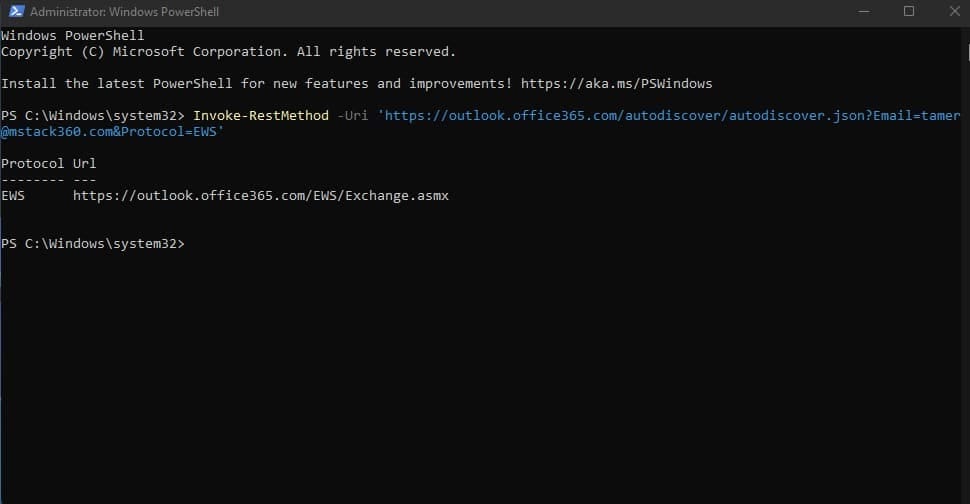
- Compare that against where Outlook is storing meetings. If the two do not match, that split is your problem.
Consolidate to a single mailbox in the cloud
The cleanest fix is to have only one mailbox, in Exchange Online. When Outlook and Teams both connect to the same cloud mailbox, meetings you create in either app show up in the other automatically. This is the option Microsoft points to when keeping the on premises setup working proves difficult.
- Migrate the on premises mailbox to Exchange Online so the user has one mailbox, not two.
- After the move, have the user sign out of Teams and sign back in to force the calendar to reload against the new mailbox.
- The calendar can take a few hours to appear after a mailbox move, and a Teams restart is usually needed once it does.
Keep the mailbox on premises and fix the hybrid setup
If the mailbox has to stay on your own Exchange server, the Autodiscover V2 redirect that connects Teams to that mailbox has to work end to end. This is a hybrid configuration, meaning your on premises Exchange and Exchange Online are joined together so the cloud can hand requests back to your server. Work through these requirements:
- Run Exchange Server 2016 Cumulative Update 3 or later. The Teams calendar depends on Autodiscover V2, and older on premises versions do not support it.
- Make your Autodiscover and Exchange Web Services URLs reachable from the internet, with no pre authentication in front of them, since Teams uses an anonymous request that a login prompt would block.
- Make sure OAuth authentication, the trusted connection between your Exchange server and Exchange Online, is working. The supported way to set this up is by running the Hybrid Configuration Wizard.
- Confirm the user identity is synced to Microsoft Entra ID, the cloud directory that Teams uses to recognize your users, even though the mailbox itself stays on premises.
Tip
Once the mailbox is consolidated or the hybrid path is confirmed, sign out of Teams and back in to force a fresh calendar load. That makes it much easier to tell from the result whether the fix worked, rather than waiting on a background refresh.