
Teams Meeting Add-in not showing for non-admin users on RDS
If Outlook on your Remote Desktop Server (RDS) shows the Teams Meeting Add-in for admins but not for standard users, you are hitting a known installation policy conflict. Here is what is causing it and how to fix it permanently.
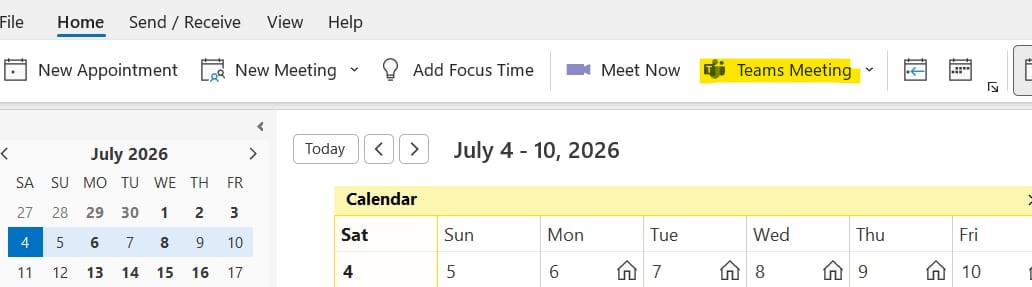
What is actually happening
Teams installs the Meeting Add-in per user at logon. Admin accounts have the rights to run that installer, so TMA registers correctly and Outlook picks up the current version.
Standard users hit Windows Installer error 1625 ("installation forbidden by system policy"), so the per-user install silently fails. Outlook stays registered to whatever older TMA was present before.
The durable fix: two options
HKCU\...\TeamsAddin.FastConnect\LoadBehavior is set to any value other than 3, that per-user key takes precedence and the machine-wide registration is ignored. Check and clear any conflicting HKCU entries as part of your rollout.
RDS image checklist
-
Set the VDI environment flag
HKLM\Software\Microsoft\Teams\IsWVDEnvironment= 1 (DWORD). This tells Teams to use the machine-wide install model instead of trying per-user installs at logon. -
Disable Teams auto-update on the image Set
HKLM\SOFTWARE\Microsoft\Teams\disableAutoUpdate = 1(DWORD) on the base image. Update Teams and re-run TMA install as a deliberate step during image maintenance, not on live sessions. When this key is present,teamsbootstrapper.exe -palone will not install TMA, you must include--installTMAexplicitly. -
Confirm WebView2 is present and current New Teams requires Microsoft Edge WebView2. If it is missing or outdated, Teams will not launch correctly and TMA registration will fail silently.
-
Verify Windows Server 2022 build Your server build must be 20348.2402 or later. Earlier builds are below Microsoft's stated minimum for new Teams on VDI and can produce unpredictable registration behaviour.
-
Add Teams to your antivirus and DLP exclusions Security software that intercepts or scans Teams processes at launch can silently block TMA registration. Add Teams to your antivirus and data loss prevention exclusion lists before sealing the image. This is a Microsoft requirement for Teams on VDI.
-
Persist the required Teams profile paths These paths must roam with the user profile or Teams state is lost on every logoff. The key file for TMA is
AppData\Local\Publishers\8wekyb3d8bbwe\TeamsSharedConfig\tma_settings.json. Do not persist themeeting-addinfolder under TeamsSharedConfig. Persisting it causes incorrect meeting coordinates in Outlook templates. -
Validate in a non-admin session Log in as a standard user, open Outlook, then go to File > Options > Add-ins. The Teams Meeting Add-in should appear under Active Application Add-ins, pointing to the current version path.
Quick confirmation and troubleshooting
On a non-admin session, open Event Viewer and go to Windows Logs > Application. Filter for Source: MsiInstaller. Look for Event ID 1625 around the time of the last logon. If you see it, the per-user TMA installer was blocked by system policy. Machine-wide HKLM registration is the fix.
Outlook disables add-ins that fail to load within a set time. If TMA is registered to a path that no longer exists (the old version folder after a Teams update), Outlook marks it as a slow or crashed add-in and disables it automatically.
Fix the registration to point at the correct current path, then re-enable the add-in under File > Options > Add-ins > Manage COM Add-ins.
Yes, if you use Option B (MSI method). Each Teams update ships a new TMA version in a versioned subfolder. Your deploy script needs to detect the new version path and update both the file install target and the HKLM registry path accordingly.
Option A (bootstrapper) handles this for you. teamsbootstrapper.exe -p --installTMA always installs the TMA version that matches the Teams build on the machine, so re-running it after an update is enough.
Check Event Viewer under Applications and Services Logs > Microsoft > Windows > AppXDeployment-Server for detailed output. Three common codes:
0x80070057: The bootstrapper command is using a relative path (with a dot). Use the full path to the MSIX instead, for example c:\temp\MSTeams-x64.msix.
0x80070032: Probable UNC path issue. Copy the MSIX to a local folder and try again.
0x80004004: A leftover registry key maglevInstallationSource at HKLM\Software\WoW6432Node\Microsoft\Office\Teams is blocking the install. Delete it and retry.
Outlook presence relies on Teams being registered as the default instant messaging app. Make sure Teams is running first, then launch Outlook. The order matters.
Then check the following registry values under the affected user account:
HKCU\Software\IM Providers
Name: DefaultIMApp | Type: REG_SZ | Data: MsTeams
HKCU\Software\IM Providers\MsTeams
Name: UpAndRunning | Type: REG_DWORD | Data: 2 (0 = not running, 1 = starting, 2 = running)
If either value is missing or wrong, Teams did not complete its registration with Office. Signing out of Teams and signing back in while Outlook is closed will usually re-stamp them.