
Out of office, peace of mind
Planning a vacation, taking some well deserved time off, or stepping away from your desk for a while? The last thing you want is an inbox full of urgent "did you see my email?" messages while you are trying to relax. Setting up automatic out of office replies in Microsoft Outlook lets you tell colleagues and clients that you are away and when they can expect a response. Here is your quick, stress free guide to setting it up across different versions of Outlook.
Set up auto reply in Classic Outlook desktop
Classic Outlook is the traditional desktop application on Windows. If that is what you use, setting up your out of office response takes less than a minute.
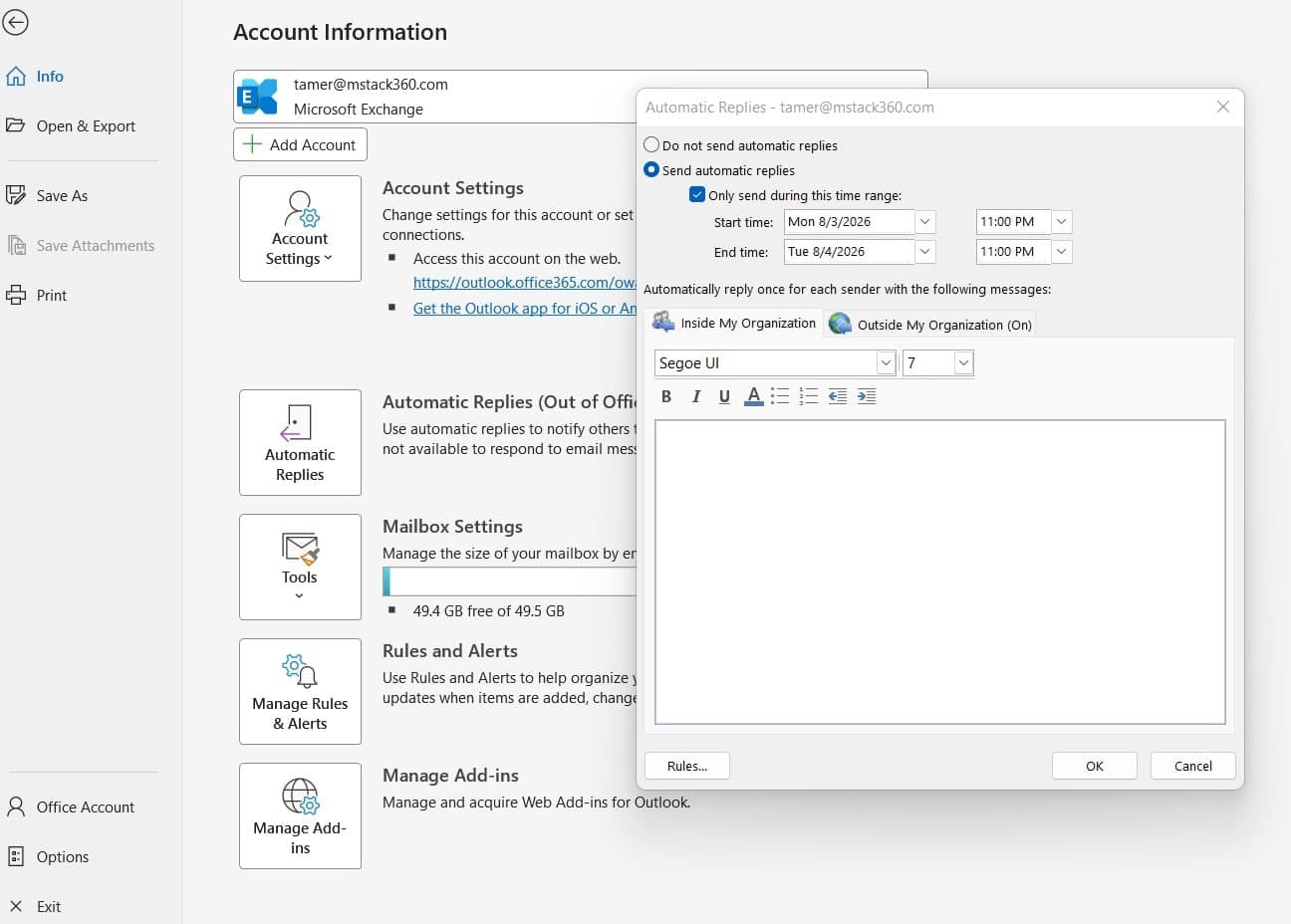
Open Automatic Replies
Open Outlook, click File in the top left menu, then click Automatic Replies (Out of Office).
Turn replies on
Select the Send automatic replies option.
Set a time range (optional)
Check the Only send during this time range box to set a start and end date. If you leave it unchecked, your auto reply stays active until you manually turn it off.
Write your internal message
On the Inside My Organization tab, type the message meant for your direct teammates and internal colleagues.
Write your external message
On the Outside My Organization tab, check Auto reply to people outside my organization, then write a message for external clients or vendors.
Activate
Click OK to switch it on.
Set up auto reply in New Outlook and Outlook on the web
If you are using New Outlook for Windows or signing into Outlook on the web, the process is streamlined right inside your settings.
Open Settings
Click the Settings gear icon in the top right corner of the window.
Find Automatic replies
In the sidebar menu, select Account, then Automatic replies.
Turn replies on
Click the Turn on automatic replies toggle.
Set a time period (optional)
Tick Send replies only during a time period and select your start and end dates.
Write your message
Type your away message into the main box. Scroll down to set up external replies for senders outside your company if you need to.
Save
Click Save at the bottom.
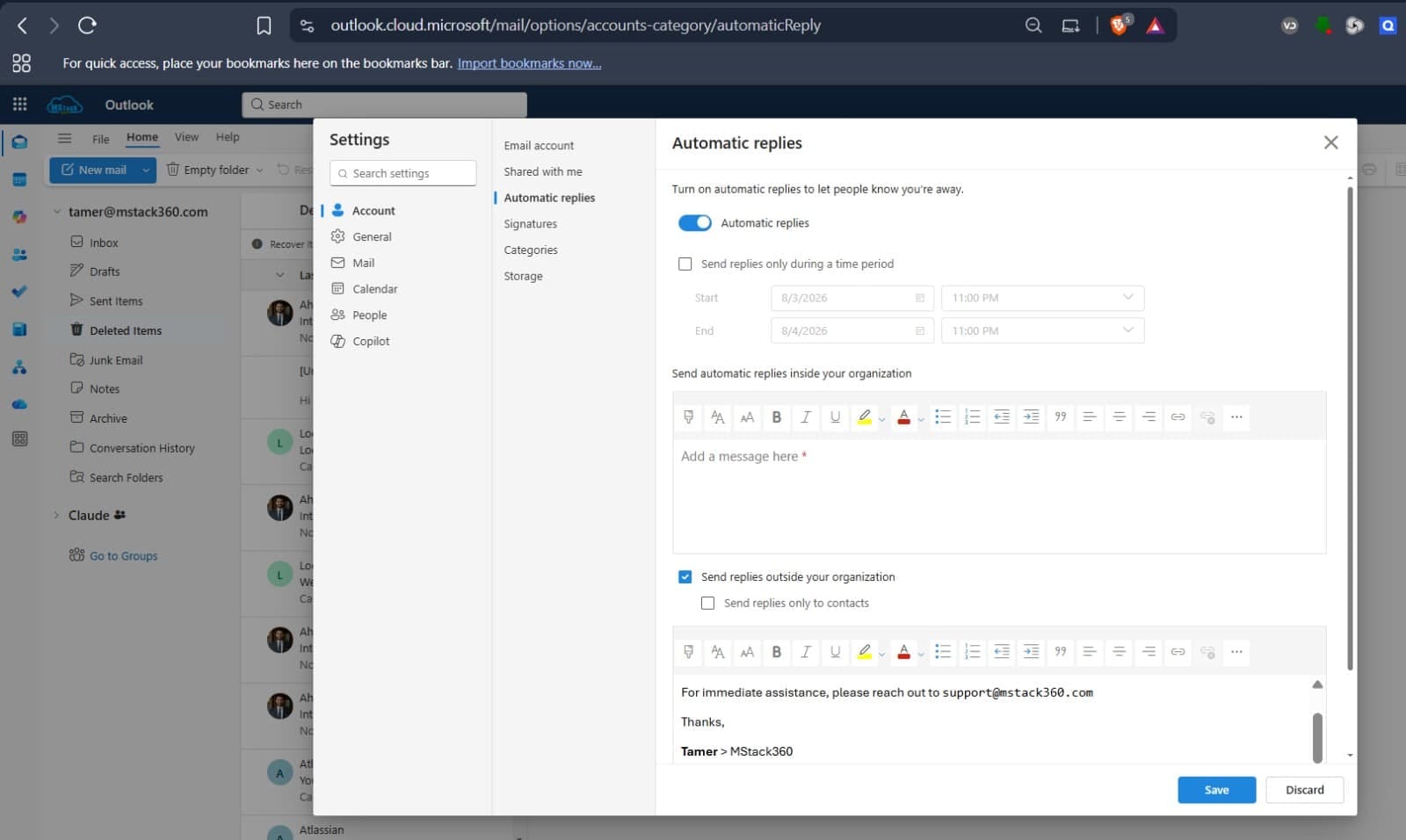
Power features beyond just a text message
Modern versions of Outlook offer extra automation controls, so you can protect your focus and schedule before you even step away.
| Feature | What it does |
|---|---|
| Block my calendar | Automatically reserves your calendar as busy or away during your vacation window. |
| Decline new meeting invites | Automatically sends a polite decline to any new meeting requests scheduled while you are out. |
| Cancel existing meetings | Declines or cancels meetings already on your calendar during your away period. |
| My contacts only | Restricts external replies to people in your contact list, so you do not send auto replies to spam or newsletters. |
Outlook keeps track of who has emailed you and sends your auto reply only once per sender during your out of office period. That stops endless email feedback loops.
Your checklist before you unplug
- Double check your start and end dates.
- Mention who to contact for urgent matters while you are away.
- Enable external replies if you communicate with clients outside your company.
- Hit Save or OK.
Want your Microsoft 365 set up to just work?
From email and Outlook to security and migrations, we help small businesses get Microsoft 365 configured properly so the everyday things are one less thing to think about. Book a session and we will take a look at your setup together.
Book a session with MStack360