
Get Google Drive files into Teams in five steps
You can share any Google Drive file in a Teams chat or channel by pasting its link. Teams builds a rich preview so people can identify and open it in a click. Here is the full process.
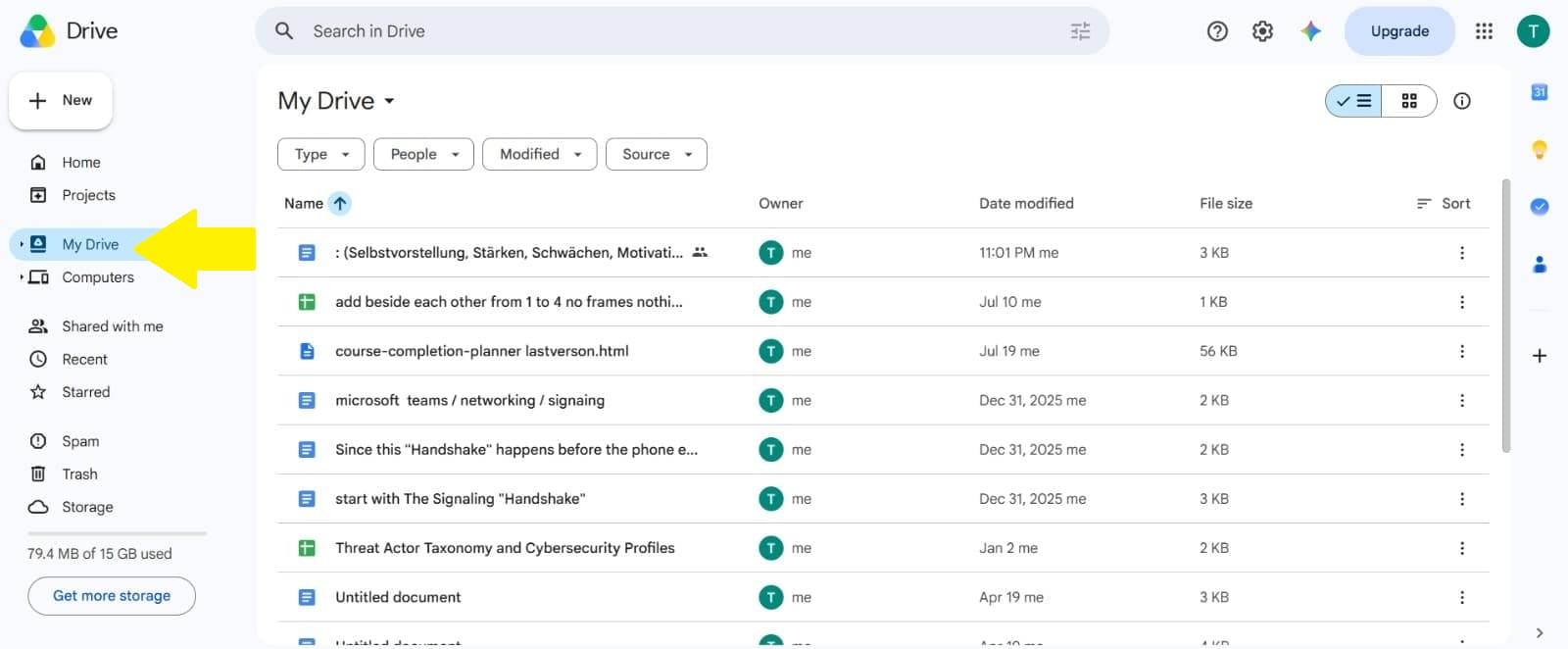
Open the file and start sharing
In Google Drive, open the file you want to share and click the share icon at the top right. A dialog opens with the current access controls.
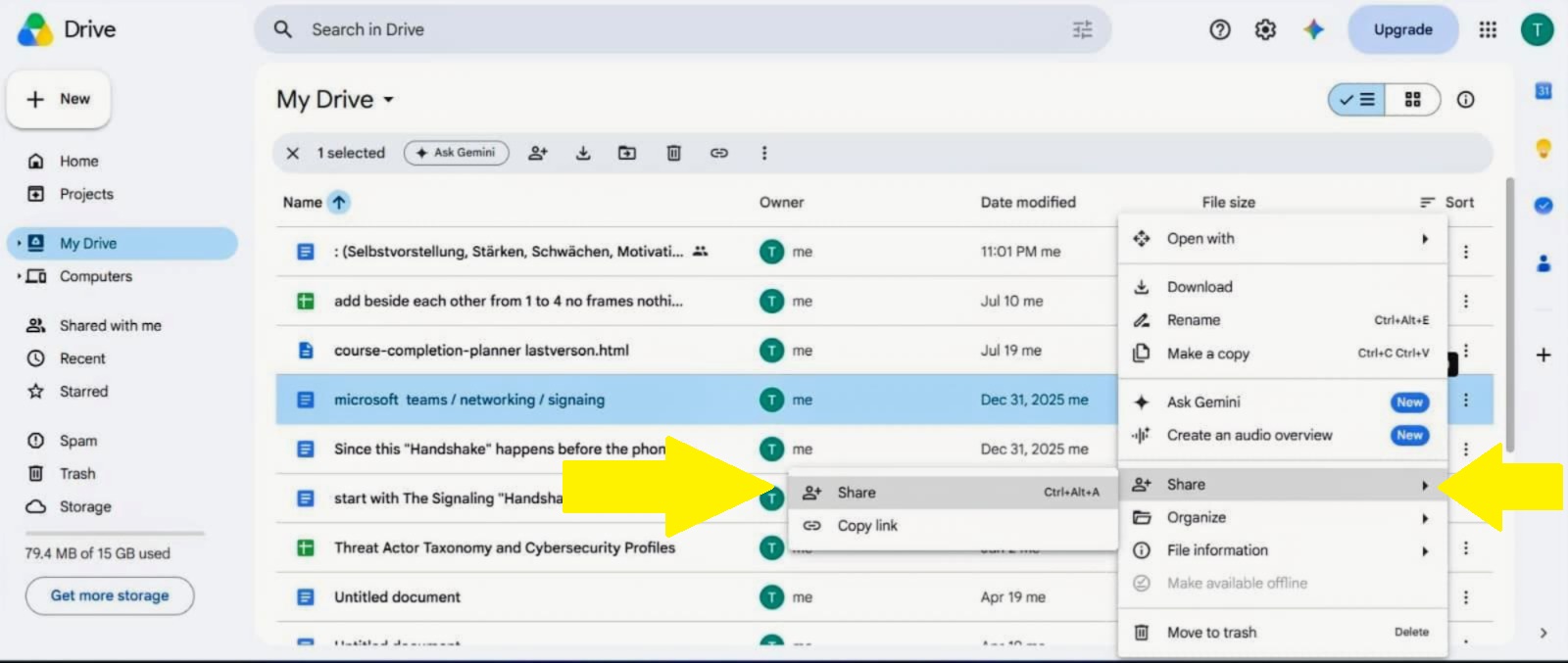
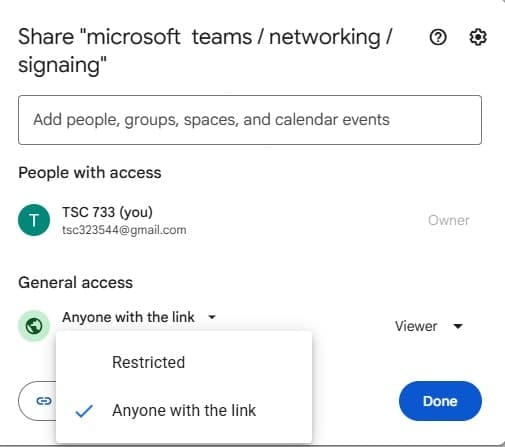
Set access to anyone with the link
Click the "Restricted" drop down and choose "Anyone with the link" so your team members can open it. Google saves the change and shows an "Access updated" confirmation.
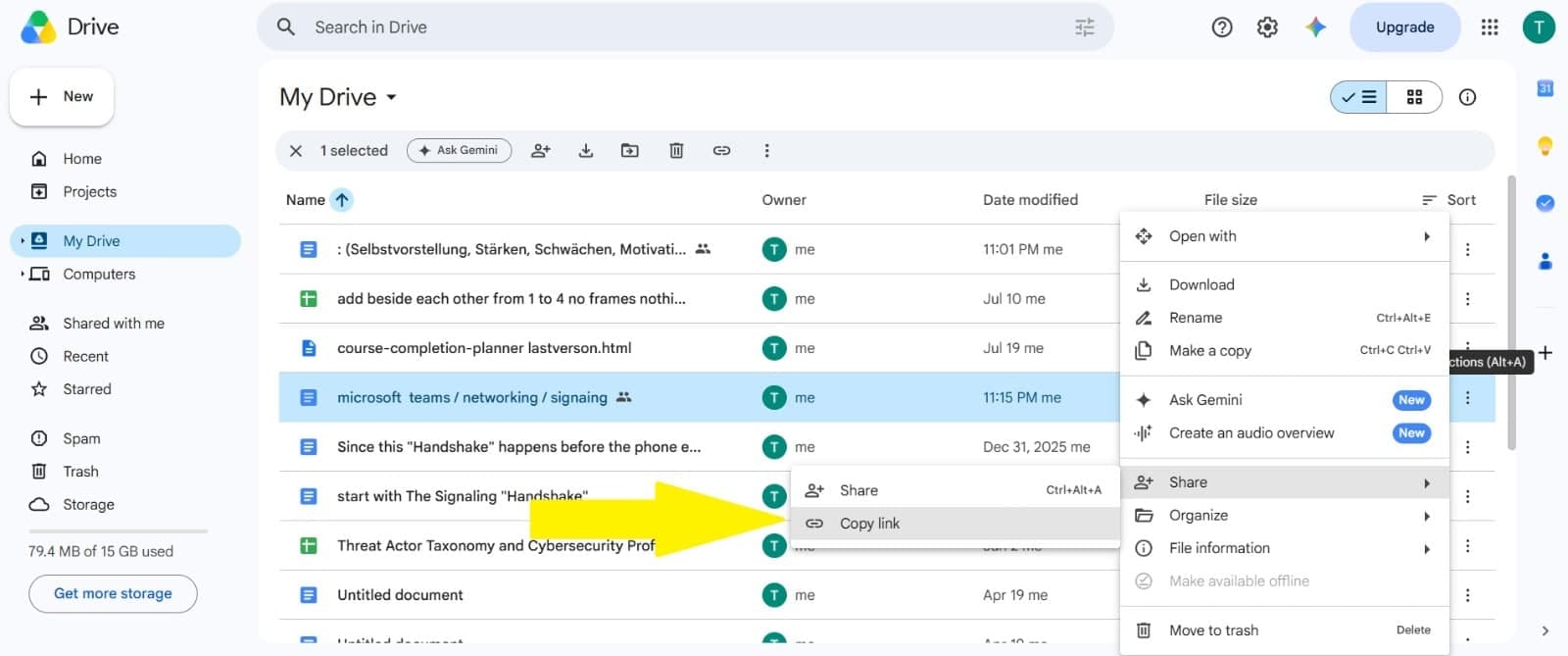
Copy the link
Click "Copy link" at the bottom of the dialog. A "Link copied" message confirms the URL is on your clipboard. Click "Done" to close the dialog.
Paste it into Teams
Switch to Microsoft Teams, open the chat or channel you want, click into the message box, paste the link, and click send.
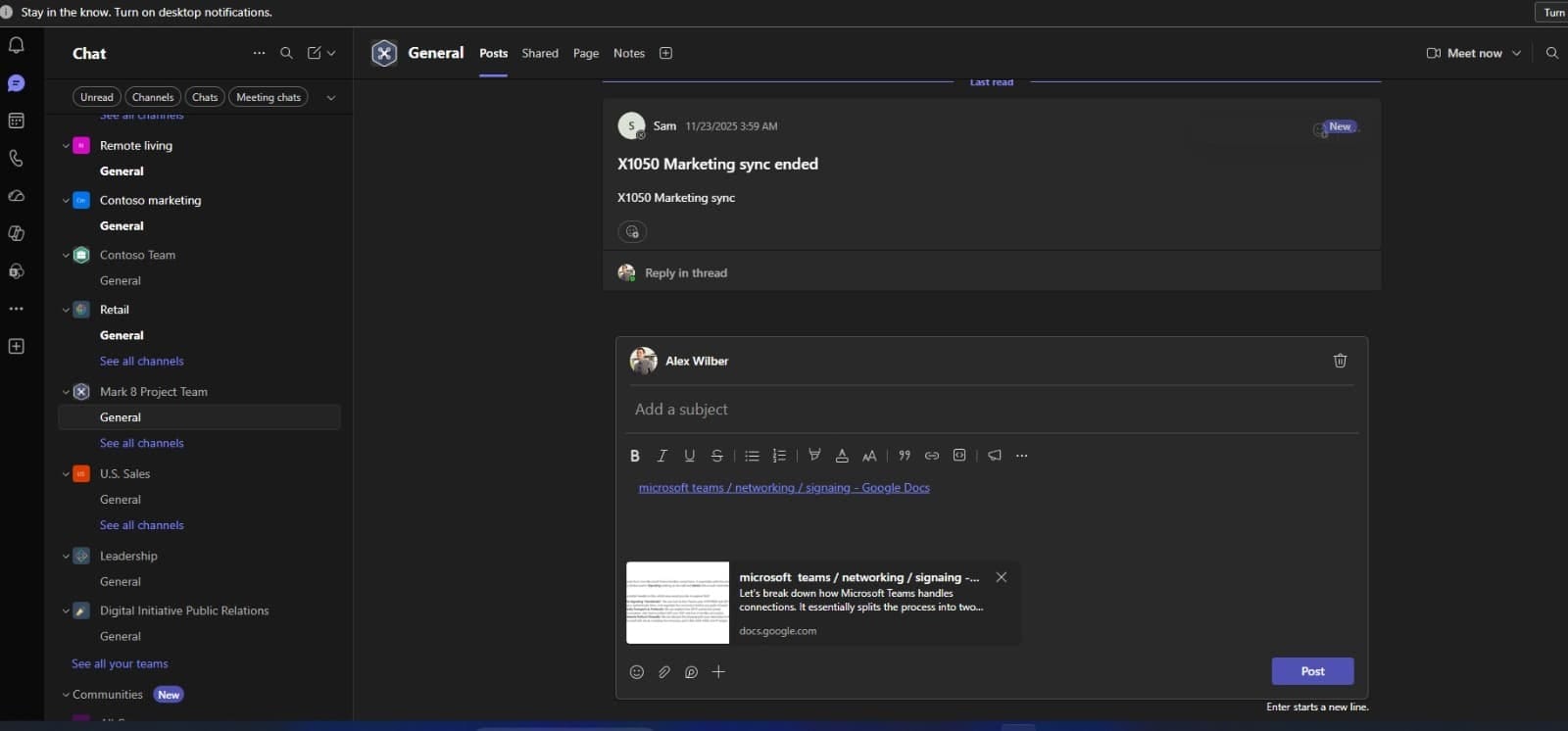
Let the preview load
After a moment, Teams generates a rich preview showing the file name and document type. This works for Docs, Sheets, Slides, and PDFs. Larger files and spreadsheets can take a few seconds.
If you leave the file as "Restricted", your team members will hit a permissions error when they try to open it. If someone reports they cannot access a file, reopen the Google Drive share dialog and check the access level. Organization policies can sometimes override your sharing settings.
Want your whole team sharing files the right way, without permission errors or one off fixes? MStack360 can set up clean, secure file sharing across Google Drive, SharePoint, and Teams for your business.
Book a call with MStack360