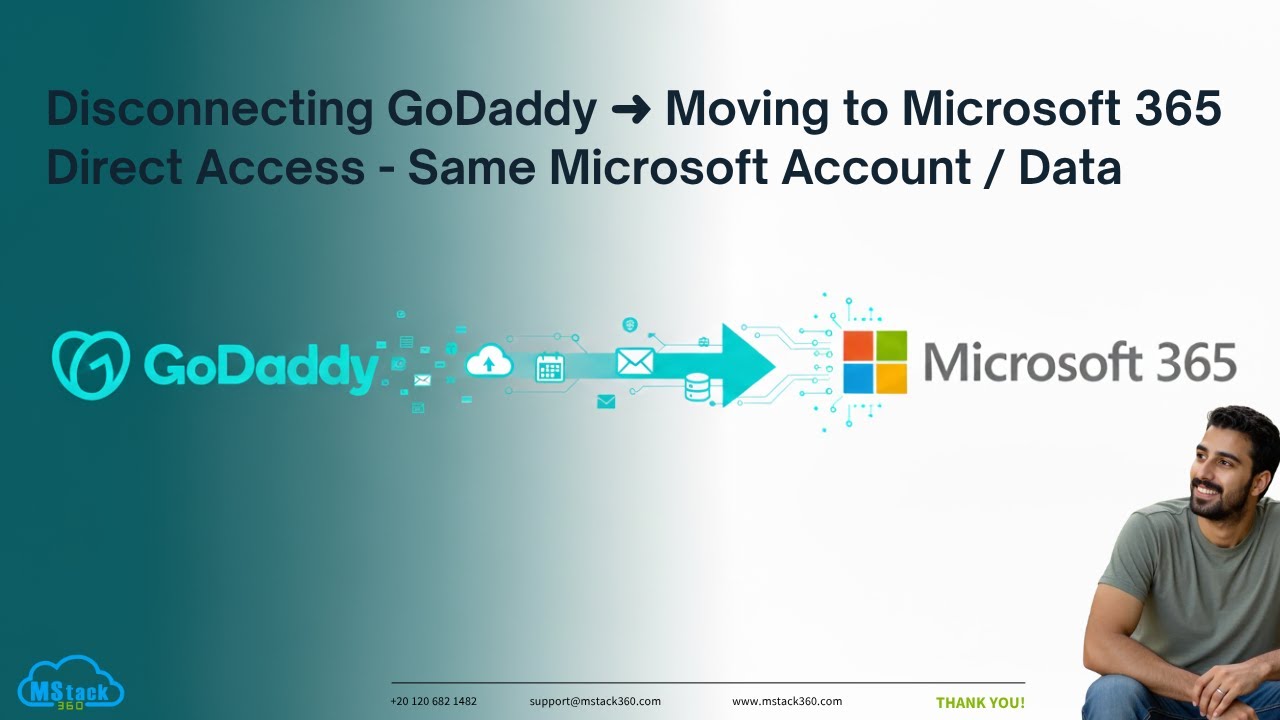
GoDaddy De-Federation from Microsoft 365: Your Complete FAQ Guide

Everything you need to know about disconnecting your Microsoft 365 tenant from GoDaddy's management—regain full control, unlock advanced features, and switch providers without losing your data.

📧 No Data Loss ⏱️ 10-30 Min Process 🔐 Full Admin Access 💰 Free to De-federate
GoDaddy De-Federation Tutorial Video

📺 Watch: GoDaddy De-Federation Walkthrough

Step-by-step video guide covering both assisted and DIY methods

▶ Watch Now

Understanding De-Federation

The basics of what de-federation means and why it matters for your business

1

What does "de-federation" mean in the context of GoDaddy and Microsoft 365?

De-federation is the process of switching your domain from a "federated" state (managed by GoDaddy as a reseller) to a "managed" state, where you or another provider handles authentication and administration directly through Microsoft.

Think of it like this: currently, GoDaddy sits between you and Microsoft, controlling your tenant. After de-federation, you connect directly to Microsoft with full control.

Important: De-federation doesn't delete your data. It simply changes who manages your tenant.

💡 Why De-Federate?

Common reasons businesses choose to disconnect from GoDaddy's Microsoft 365 management

🔓

Full Admin Access

Unlock Global Admin access to advanced features like Conditional Access, security policies, and integrations that GoDaddy restricts.

💳

Better Pricing & Flexibility

Switch to direct Microsoft billing or another CSP for potentially better pricing, support options, and licensing flexibility.

🚀

GoDaddy Phase-Out

GoDaddy has phased out new M365 sales and encourages existing customers seeking more control to migrate.

⛓️

Remove Bundled Limitations

Escape restricted admin rights and bundled add-ons like Proofpoint email security that you may not need or want.

ℹ️
Not sure if you need to de-federate? If you're satisfied with GoDaddy's setup and don't need expanded capabilities, de-federation may not be necessary—unless your contract is ending.
3

Will I lose my data, emails, or files during de-federation?

No, there is no data loss. Your emails, Teams data, OneDrive files, and SharePoint content remain intact in the M365 tenant.

However, as a best practice, always back up critical data (using exports or third-party tools) before starting any migration process.

Prerequisites Checklist

Make sure you have everything ready before starting the de-federation process

Active M365 subscriptions with GoDaddy (not expired or suspended)
Access to your domain's DNS settings (often in GoDaddy if they host your domain)
Separate contact email not tied to the organization being moved (for password resets)
Documented user passwords—all users will need to reset them after the process
Global Admin credentials for the M365 tenant
Add-on migration plan if using Proofpoint, Barracuda archiving, or similar services
Off-hours schedule planned to minimize user impact

🔄 The De-Federation Process

Choose your approach: GoDaddy-assisted (easier) or DIY with PowerShell (faster)

GoDaddy-Assisted

1-5 business days

DIY (PowerShell)

10-30 minutes

1

Contact GoDaddy Support

Reach out via chat, phone, or support ticket to initiate the move. Provide your organization details, domains, and add-on preferences.

2

Receive Temporary Password

GoDaddy creates a ticket and sends a temporary password to your non-M365 contact email.

3

Log In & Reset Passwords

Log in to your tenant at office.com with the temporary password. Reset admin and user passwords.

4

Purchase New Licenses

Buy new M365 licenses directly from Microsoft or through a Cloud Solution Provider (CSP).

5

Update DNS Records

Update MX, SPF, DKIM, and Autodiscover records to point to the new provider.

6

Remove GoDaddy as Reseller

Once subscriptions expire, remove GoDaddy's delegated admin access (can't be removed immediately).

1

Back Up Data & Notify Users

Export critical data and communicate the planned maintenance window to your team.

2

Gain Global Admin Access

Log in to portal.azure.com and reset the onmicrosoft.com admin password if needed.

3

Install Microsoft Graph PowerShell

Install the Microsoft Graph PowerShell module on your machine to run the required commands.

4

Run De-Federation Commands

Connect to your tenant and run: Update-MgDomain -DomainId "yourdomain.com" -Authentication Managed

5

Reset All User Passwords

Use Entra Admin Center or PowerShell scripts for bulk password resets.

6

Assign Licenses & Update DNS

Assign new licenses from Microsoft or CSP, update DNS records, and remove GoDaddy's delegated admin roles.

⚠️
Technical Expertise Required The DIY method requires familiarity with PowerShell and Microsoft 365 administration. If you're not comfortable with these tools, you can use the assisted method or reach out to us at MStack360. We'll guide you through the entire process and stay available for ongoing support after your migration is complete.

⏱️ Expected Downtime & Impact

What to expect during the de-federation process

Area Impact Level Details
📧 Email Flow ● Minimal Typically none if DNS updates are handled correctly. If using Proofpoint, update MX records immediately.
👤 User Access ● Brief Users may be logged out of Outlook/Teams and need to re-sign in with new passwords (minutes to hours).
🌐 DNS Propagation ● Variable Can take up to 48 hours. Lower TTL in advance to speed this up.
📁 Data & Files ● None All emails, OneDrive, SharePoint, and Teams data remain intact.
7

Do users need to reset their passwords?

Yes, all passwords are reset during de-federation. Here's what you'll need to do:

  • Provide temporary passwords to each team member
  • Ask everyone to change their password immediately upon first login
  • Use Entra Admin Center or PowerShell scripts for bulk resets if you have many team members
8

What happens to my licensing and billing?

Your GoDaddy licenses won't transfer to your new setup. They'll expire at the end of your current term. Here's what you need to know:

  • Purchase equivalent or new licenses from Microsoft (go to admin.microsoft.com then Billing) or through a CSP
  • If you're switching providers, they'll assign your new licenses for you
  • There may be a brief overlap in billing, so cancel your GoDaddy renewals after the move is complete
  • New licenses start at approximately $6 per user per month for basic plans
9

How do I handle DNS changes?

You'll need to update several DNS records:

  • MX Record: Point to the new email provider (e.g., yourdomain-com.mail.protection.outlook.com with priority 0)
  • SPF Record: Add v=spf1 include:spf.protection.outlook.com -all
  • DKIM & Autodiscover: Add the required CNAME records

Use tools like MXToolbox to verify your records. Make changes in GoDaddy's panel if they host your DNS, otherwise update at your registrar.

10

What about add-ons like email security or archiving?

  • Proofpoint (Advanced Email Security): Update MX records to bypass it before de-federation to prevent email downtime. Release any quarantined emails first.
  • Barracuda Archiving: Contact Barracuda to migrate archives, or download them manually.
  • Other backups/add-ons: May not transfer automatically—set up equivalents with your new provider.
11

Can I do this myself, or do I need professional help?

You can absolutely do it yourself, especially with the DIY PowerShell method if you're comfortable with technical tools. Here's what to consider:

  • If your business has many team members or a complex setup, working with an expert helps you avoid errors and downtime
  • GoDaddy's assisted process is free but may take 1 to 5 business days
  • Professional migration services typically range from $500 to $2,000+ depending on your organization size

Need Expert Help with Your GoDaddy Migration?

Don't risk downtime or configuration errors. Let MStack360 handle your de-federation smoothly and professionally—so you can focus on running your business.

12

What if something goes wrong during de-federation?

Common issues and how to fix them:

  • Domain stays federated: Try running the PowerShell commands again
  • Password reset failures: Double check your admin access permissions
  • Email routing problems: Verify your DNS records with MXToolbox

Recovery options: Microsoft support can help restore access if needed. Your data is recoverable, though some downtime may occur. If possible, test in a staging environment first, and always keep backups ready.

🚨
Critical Warning If you remove GoDaddy too early, your accounts or domains might be deleted. Always wait until your subscriptions expire before removing their delegated admin access.

💰 Cost Breakdown

What you'll pay (and what you won't) during the de-federation process

De-Federation Fee
$0
No charges from GoDaddy or Microsoft
New Licenses
~$6+
Per user, per month for basic plans
Professional Help
$500+
MSP services (optional)
💡
GoDaddy licenses follow their standard refund policy. Unused time may not be refunded, so plan your transition timing carefully.
14

After de-federation, how do I manage my Microsoft 365 tenant?

Once you're de-federated, you have full control of your tenant. Here's how to manage everything:

  • Log in at admin.microsoft.com or entra.microsoft.com with your Global Admin account
  • Set up security features like MFA and Conditional Access, assign roles, and configure your integrations
  • If you're using a CSP, they'll handle billing and support for you
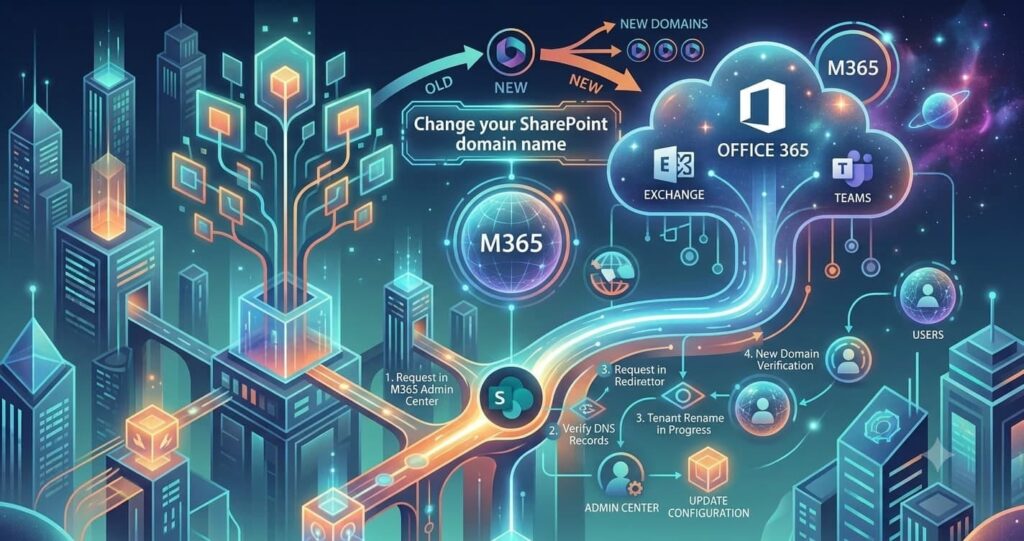
  • Rename your SharePoint URLs if needed through the admin center
  • Monitor compliance with tools like Microsoft Purview

Leave a Comment

Your email address will not be published. Required fields are marked *