Skip to content
How to Use a Shared Mailbox in Outlook: A Simple Guide for Teams
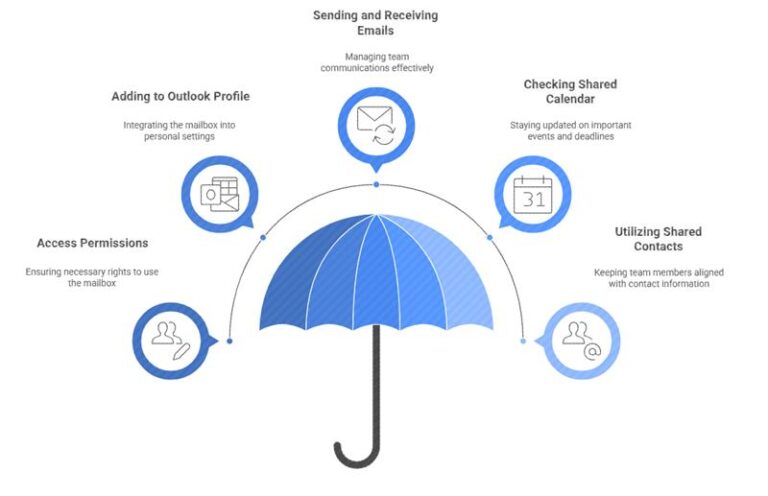
Managing team communication can get messy — especially when multiple people need to respond to customer inquiries, service requests, or general questions. That’s where a shared mailbox becomes a powerful tool. It allows your team to send and receive emails from one central address, keeping conversations organized and ensuring a consistent reply style.
Whether you’re using a shared address like info@company.com or support@company.com, Outlook makes it easy for your team to work together from one inbox without switching accounts.
In this guide, we’ll walk you through how to access, send, and manage emails from a shared mailbox using Outlook on the web.
What Is a Shared Mailbox — And Why Use One?
A shared mailbox is designed for teams who need access to the same email address. When any team member replies, the message appears to come from the shared address — not their personal account. It’s ideal for:
Customer service teams
Sales inquiries
HR communication
“No-reply” or automated email addresses
Departments that share responsibilities
It even includes a shared calendar that the entire team can use for scheduling.
Before you start using one, your Microsoft 365 administrator must create the shared mailbox and add you to it. Once that’s set up, you’re ready to go.
Accessing a Shared Mailbox in Outlook on the Web
Outlook gives you two ways to view the shared mailbox, depending on how you prefer to work:
1. Add It to Your Existing Mailbox View
This option displays the shared mailbox alongside your personal mailbox, making it simple to switch between both.
Here’s how:
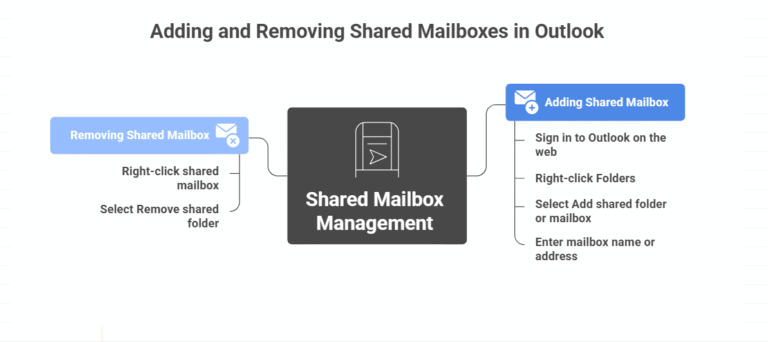
It will appear instantly in your folder list whenever you log in. You can remove it anytime by right-clicking and choosing to remove the shared folder.
2. Open It in a Separate Browser Window
If you want dedicated notifications or a cleaner view, opening the shared mailbox separately is the better option.
Follow these steps:
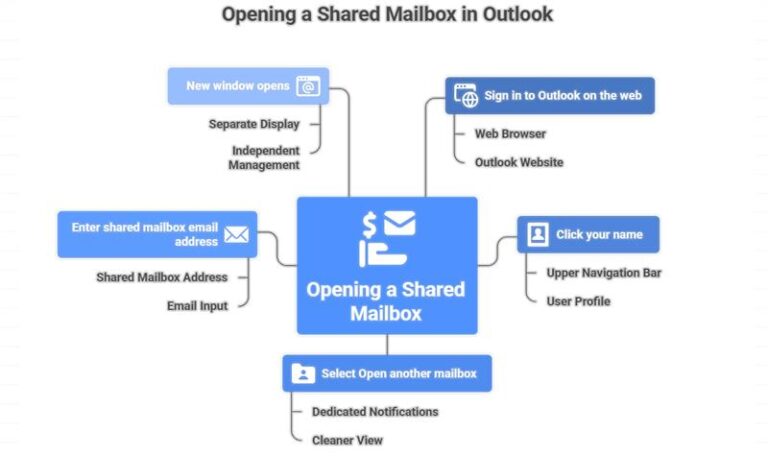
This method also ensures you receive notifications for new messages, something the side-by-side view does not provide.
Sending Email from the Shared Mailbox
Once you have access, you can send emails directly from the shared address.
Here’s how to do it:
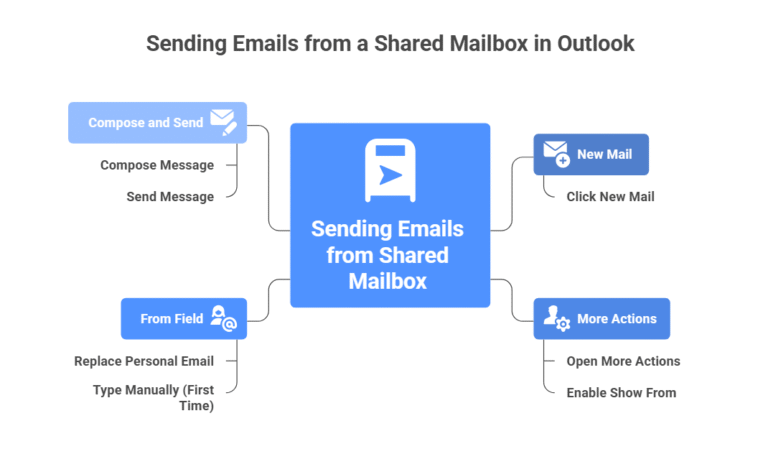
After the first use, Outlook will remember the shared address and show it automatically.
Replying to Messages Sent to the Shared Mailbox
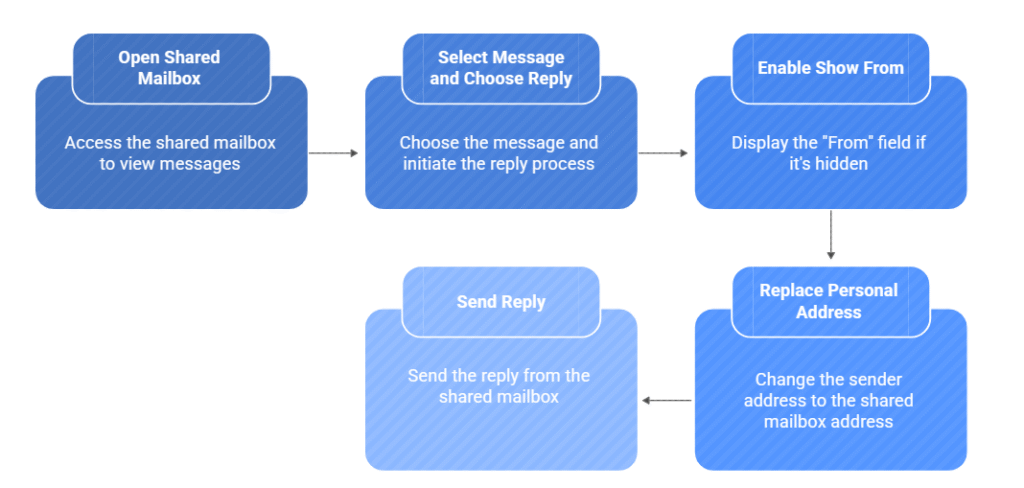
When responding to incoming messages:
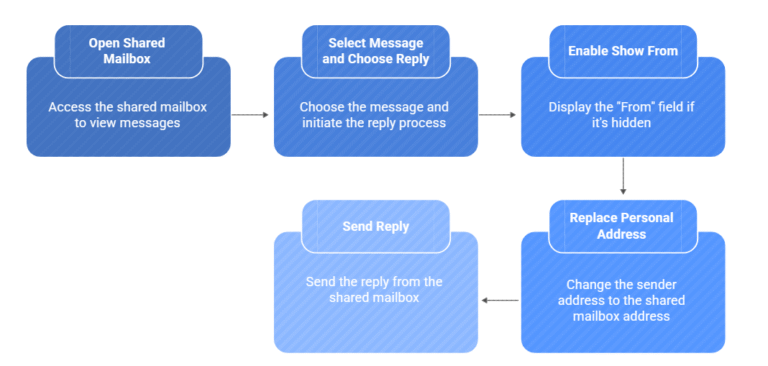
From then on, the shared address will appear in your sender list without extra steps.
Automatic Replies for Shared Mailboxes
Need an auto-response like “Thank you for contacting us” or “Our team will get back to you soon”?
Automatic replies for shared mailboxes can only be set up by your Microsoft 365 administrator. If you require this feature, make sure to request it from them.
A Final Word
Shared mailboxes are a simple but powerful tool for any team that handles group communication. When used properly, they streamline workflow, maintain consistency, and ensure nothing slips through the cracks.
If your organization needs help setting up shared mailboxes, Microsoft 365 services, or optimizing team communication, Mstack 360 can support you with reliable, expert solutions designed for your business.
Meet Ahmed

Ahmed Masoud
Microsoft 365 Consultant specializing in Migration, Setup, Automation, and providing Dedicated, Ongoing Support to optimize your business operations.