
Change your SharePoint domain name
When you first sign up for Microsoft 365, you get an onmicrosoft.com domain. Even after you add your own custom domain, all of your SharePoint and OneDrive web addresses keep using that original onmicrosoft.com name. If your organization is rebranding, merging, or being acquired, you can change the domain in those addresses using PowerShell. For example, if your company name changes from Contoso to Fabrikam, you can move your SharePoint addresses from contoso.sharepoint.com to fabrikam.sharepoint.com.
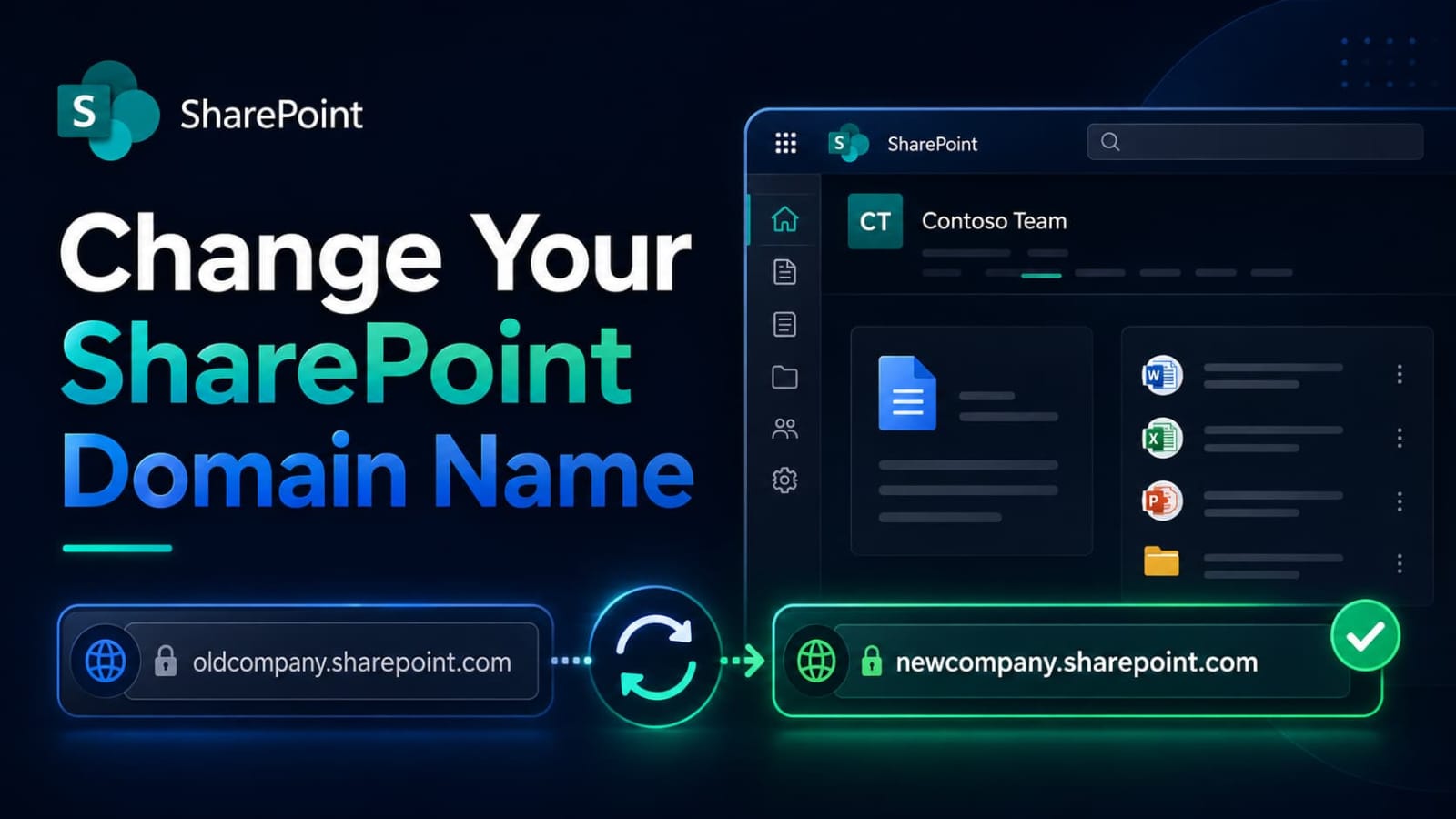
The domain change affects your SharePoint and OneDrive web addresses. It does not touch email addresses. If you only want to change a single site address, such as moving from /sites/sample1 to /sites/sample2, that is a separate task and not covered here.
- 1 What happens during the rename How the rollout works across your sites, and what the redirect means for old links. →
- 2 Before you begin, check your storage The storage math to run before you schedule anything. →
- 3 Who cannot use this feature Tenant setups that block a rename outright, and what to do instead. →
- 4 What to sort out before the rename Sites, workflows, and reports to clean up first so nothing gets lost. →
- 5 How to change your domain name The five PowerShell stages, from adding the new domain to monitoring progress. →
- 6 What might break and need fixing Links, Teams tabs, flows, and forms that may need manual attention afterwards. →
What happens during the rename
Once the rename starts, every site in your tenant is queued to move to the new domain one at a time. This includes SharePoint sites, OneDrive accounts, and SharePoint Embedded containers. While a site is waiting on the old domain, it is temporarily unavailable. As soon as each site finishes moving, it becomes reachable again.
Two versions exist
The standard version works for tenants with up to 10,000 total sites. Advanced Tenant Rename works for any number of sites but requires SharePoint Advanced Management.
A redirect is created
A redirect is set up at each old address so links still resolve. Each redirect uses about 0.15 MB of storage and expires one year after the rename.
Limited attempts
You can rename your SharePoint domain a maximum of two times over the life of your tenant, and you cannot start another rename within 30 days of one completing.
Changing your domain back to the original name after a rename is not supported. If you move from contoso.sharepoint.com to fabrikam.sharepoint.com, you cannot return to contoso.sharepoint.com later. Plan the new name carefully before you start.
Before you begin, check your storage
Because a redirect site is created for every site that is renamed, and each one uses about 0.15 MB, you need spare storage to cover them all. Make sure your tenant has at least 0.15 MB multiplied by your total number of sites available before you start. If more than 10 percent of sites fail to rename, the whole operation is suspended and you have to submit a support request to resume it.
Who cannot use this feature
Some tenant setups block the rename entirely. If any of the following apply to you, you cannot change your SharePoint domain name.
| Situation | Can you rename | What to do |
|---|---|---|
| Multi-Geo is set up now, or was set up in the past | No | No action available |
| Special or government clouds, such as GCC, GCC High, or DoD | No | No action available |
| Your tenant has a .de domain from the old German cloud | No | No action available, even if you later moved to the regular cloud |
| You use a vanity domain, such as teams.contoso.com | No | No action available |
| Alternate URLs are still configured | Not yet | Contact Microsoft to remove them first |
| Old Business Productivity Online Suite (BPOS) sites remain | Not yet | Remove them, then raise a support request to rename |
| Old SharePoint public sites remain | Not yet | Remove them, then raise a support request to rename |
What to sort out before the rename
Even when a rename is allowed, a few things need attention first so you do not lose access to important content or break live work.
- Restore any deleted sites you want to keep. After the rename, you cannot restore sites you deleted before it.
- Reactivate any archived SharePoint sites that are connected to Teams channels or Microsoft 365 groups, because those are not renamed.
- Review locked sites connected to Teams channels or Microsoft 365 groups, since those are also skipped by the rename.
- Finish or replace your root site before you schedule, because you cannot swap the root site during the rename.
- Download any Power BI reports that use SharePoint as a data source so you can reconnect and republish them afterwards.
- Complete any in flight workflows in Project Online and SharePoint 2013 workflows, since these do not survive the rename.
- Confirm all users have current versions of the OneDrive sync app, OneNote, and the SharePoint mobile apps so they update cleanly.
How to change your domain name
The rename happens in five stages using PowerShell. Run it during a quiet period, such as a weekend, and tell your team to avoid SharePoint and OneDrive while it runs. Do not plan any user sign in name changes at the same time.
Add the new domain name
First check the name is free. Type the address you want, such as https://fabrikam.sharepoint.com, into a browser. If you get a "not found" (404) message, it is likely available. If you get a sign in screen instead, someone else has it and you need a different name.
Then add your new .onmicrosoft.com domain from the Domains page in the Microsoft 365 admin center. Do not use the plain "Add domain" option, as that does not create the right kind of domain. Do not set it as your fallback domain. Confirm it shows as Healthy before you continue.
Do not rehearse this in a test environment using the domain you actually want. If you do, you will not be able to use that domain for your live environment.
Run the rename in PowerShell
Download the latest SharePoint Online Management Shell first, and uninstall any older version from Add or remove programs. This tool does not work on Mac. Connect as at least a SharePoint Administrator, then start the rename.
The domain name is the part before sharepoint.com. The scheduled time must be at least 24 hours in the future but no more than 30 days out, based on your computer's local date and time. To cancel before it starts, run Stop-SPOTenantRename.
If you would rather not calculate that time by hand, this script reads your computer's current time and schedules the rename exactly 24 hours out, with a confirmation prompt before it runs.
Prioritize key sites (premium)
If you have SharePoint Advanced Management licenses, you can push up to 4,000 important sites to the front of the queue so they finish first. This is useful for business critical sites you want available by the next working day. Root sites cannot be prioritized.
Do this after you schedule the rename, and finish any changes at least two hours before the start time. Prioritizing raises the chance a site finishes first, but does not guarantee it.
Monitor the progress
Open a fresh PowerShell window and sign in again to check on things. Compare the renamed site count against your total, and watch the Attention Required field for sites that could not move.
Times shown are in UTC. To export a list of failed sites, pass the RenameJobID as the ParentOperationID and pipe the result to Export-Csv.
Review settings afterwards
Once the rename is done, check that firewall rules do not block the new domain, and that your organization's browser settings and any Group Policy trust the new address.
Then review any non Microsoft apps, custom apps, and scripts that reach into SharePoint, as they may need updating to the new domain. If you have custom SharePoint Framework solutions that use an API, confirm their access on the API access page in the SharePoint admin center.
What might break and need fixing
Most content keeps working through a redirect, but anything that stored the old address as a fixed link will need manual attention. Here are the common things to check after a rename.
Some things store the full old web address rather than following the redirect, so you need to update them by hand:
- Hub site menu items that use full addresses
- Page content and text that mentions the old domain name
- Absolute addresses inside custom apps, Group Policy objects, and site customizations
- Web parts and SharePoint add-ins that reference direct addresses, which may need republishing
The first time someone opens the Files tab for a team or private channel, they see an error, and it works for everyone after that. Meeting notes can take up to 72 hours to work again.
- Added cloud storage folders that point elsewhere need to be removed and added again
- Document libraries and SharePoint lists added as tabs need to be removed and added again
- Wiki images may need their addresses corrected, and personal Wikis stop working
Request sign off flows and any flows deployed as solutions that use SharePoint need to be removed and rebuilt. A small number of ordinary flows may also fail and need their address updated by hand.
For Power BI, reports that use SharePoint as a data source stop working. If you saved them as .pbix files beforehand, edit the connections in Power BI Desktop and republish. Reports not maintained in Power BI Desktop need to be rebuilt.
- InfoPath forms that use a SharePoint connection need reconnecting
- Microsoft Forms with attachment uploads need the upload button removed and added again
- eDiscovery holds cannot be removed until you update their addresses in the Microsoft Purview portal
- Project Online and SharePoint 2013 workflows in flight are orphaned and must be republished
Several things catch up on their own, so you can leave them alone:
- Office.com addresses can take 24 hours to update
- Delve profiles can take 24 hours to appear
- Search results update over time, often within three days for smaller sites and weeks to months for very large ones
- OneDrive updates only the domain part of the address, keeping the rest based on the user's sign in name
Renames can run for hours or days depending on how many sites and OneDrive accounts you have. Kick it off at the very start of a low usage window, such as a Friday evening or holiday, so the bulk of the work happens while people are away.
Planning a SharePoint domain rename?
A domain rename touches flows, reports, holds, and hardcoded links across your whole tenant. We can help you check your readiness and run it cleanly.
Book a call with MStack360