
Shared mailboxes in Microsoft 365, explained simply
A shared mailbox lets your team send and receive email from one address, like info@ or support@, without a license for every person or a password everyone has to remember. Here is everything you need to decide if it is the right fit and set it up correctly.
What is a shared mailbox
A shared mailbox lets a group of people send and receive email from one address, such as info@yourcompany.com, without each person needing their own login for it. When someone on the team replies, the message appears to come from the shared address itself. Every shared mailbox also comes with a calendar built in, so it works well for teams that want to track appointments together as well as share an inbox.
Shared mailbox or regular mailbox
Both let people send and receive email, but they solve different problems. Here is how they compare.
| Shared mailbox | Regular mailbox | |
|---|---|---|
| Best for | A team or role, not one person | One person's own email |
| License needed | No, as long as it stays under 50 GB | Yes, always, for every person |
| Who can send from it | Anyone you grant permission to | Only the account owner |
| Comes with Teams, OneDrive and SharePoint | No | Yes |
| Typical example | support@yourcompany.com | jane@yourcompany.com |
Start with the shared mailbox unlicensed. Add a license later only if you need more storage, archiving, or legal retention features.
Shared mailbox or a Microsoft 365 group
If your team already works together in Microsoft Teams or shares files through SharePoint, a Microsoft 365 group might already cover what you need, since it comes with an inbox of its own.
| Shared mailbox | Microsoft 365 group | |
|---|---|---|
| Best for | A high volume inbox with its own folders | A team that also wants shared files and a Teams channel |
| Setting it up | Needs an IT admin to create it | Team members can often manage access themselves |
| Sent mail | Kept in its own Sent Items folder | Shows up as part of the same thread in the inbox |
| Comes with | Just email and a calendar | Email, calendar, shared files, and optionally a Teams channel |
| Mail from outside your business | Works right away | Often needs to be switched on first |
Why not just give everyone a login
It might seem simpler to just create a normal account for a shared inbox. In practice, that usually creates more problems than it solves.
- Cost. Every licensed mailbox is a recurring fee per person, even for an inbox that nobody personally owns.
- Security. A password shared between several people is much harder to keep secure. A shared mailbox has no login of its own, so that risk goes away entirely.
- Mixed up accounts. A licensed mailbox comes bundled with Teams, OneDrive and SharePoint. When several people share one login, apps can lose track of who is actually signed in, and files can end up saved under the wrong account. A shared mailbox avoids this, since nobody signs into it directly.
Common ways small businesses use one
info@ and sales@
A general address that more than one person on the team needs to monitor and reply from.
Help desk mailboxes
Customer questions land in one place, and anyone available can pick them up and reply.
billing@ and careers@
Tied to a function rather than a person, so the address stays put even as staff change.
Reception mailboxes
Several people covering the same desk or shift can all send and receive from one address.
Setting one up
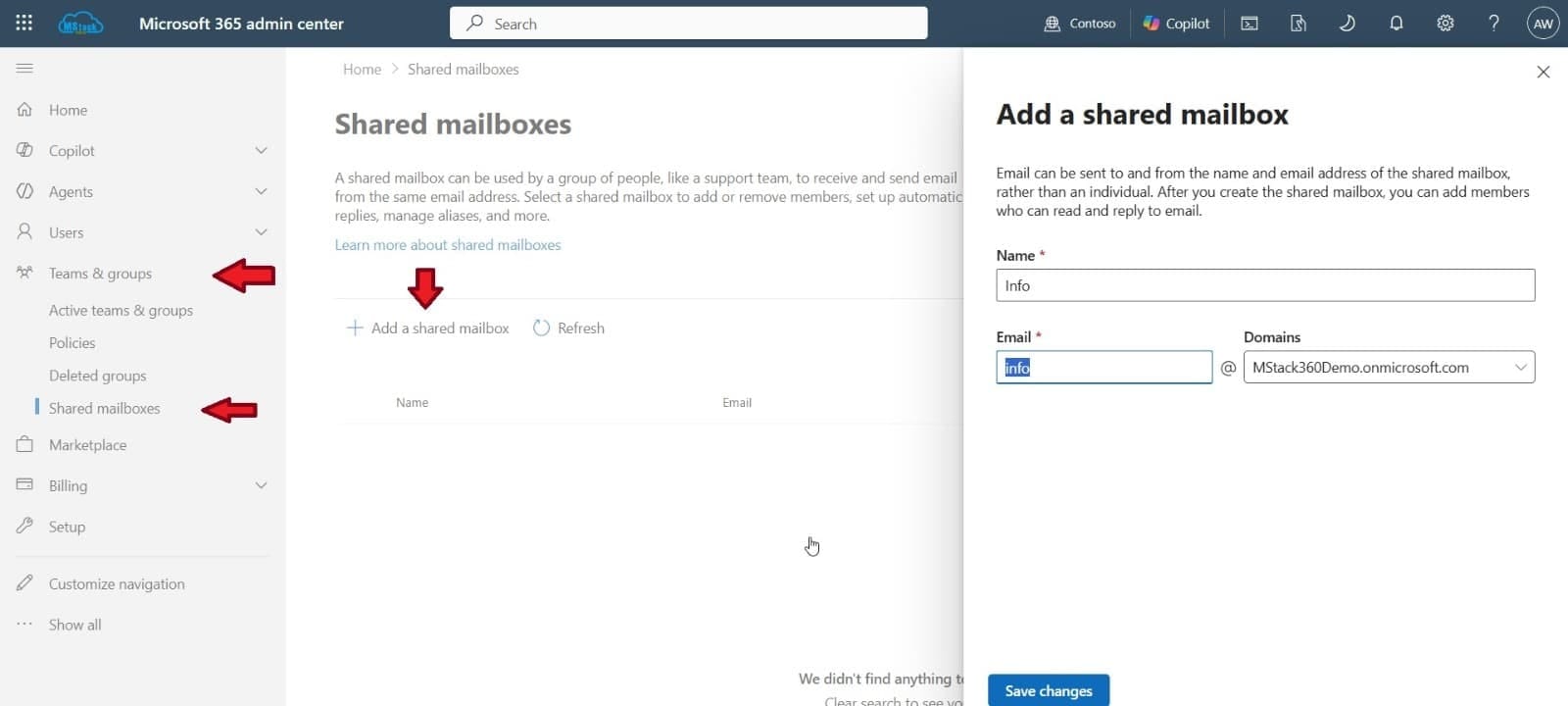
Creating a shared mailbox only takes a few minutes once someone with admin access does it.
An admin creates the mailbox
In the Microsoft 365 admin center, under Shared mailboxes, giving it a name and an email address.
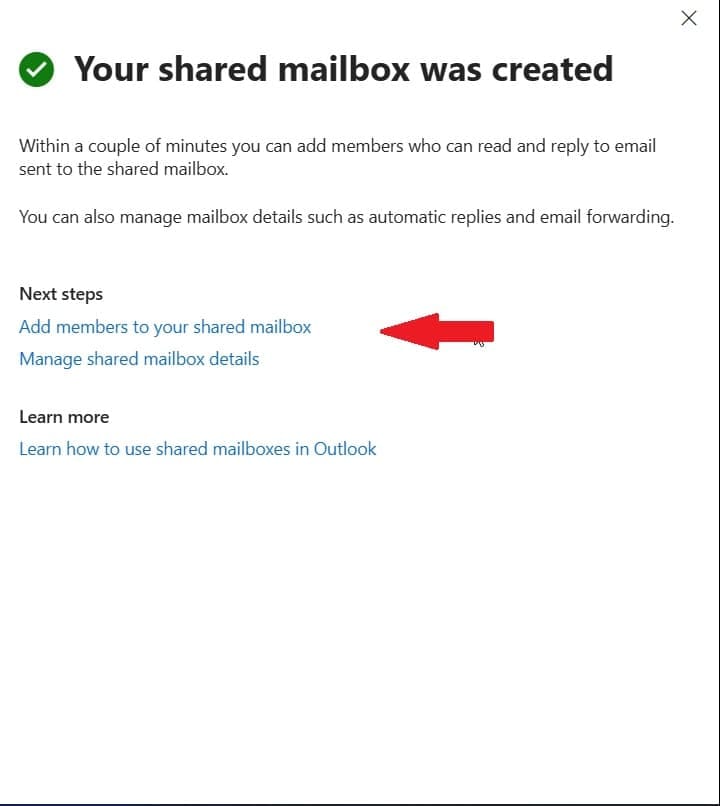
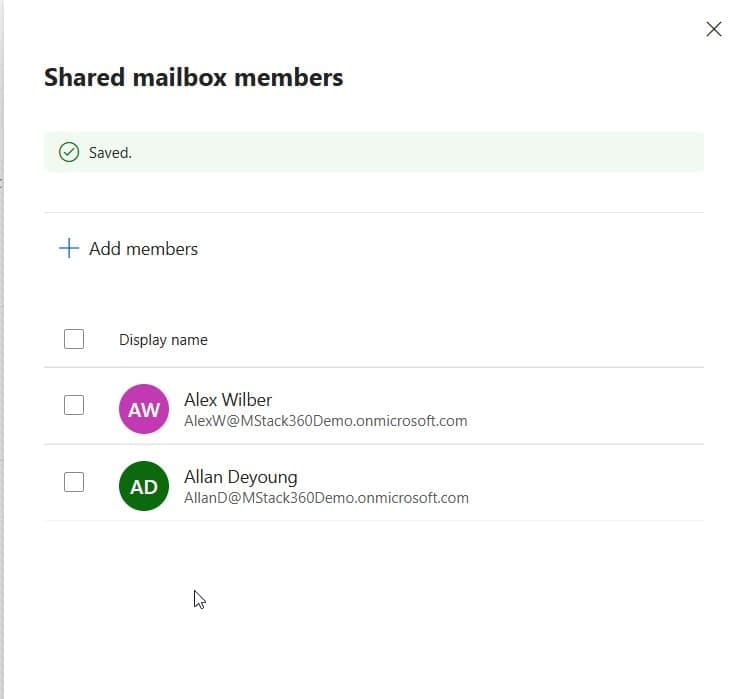
Members are added
Anyone added can see incoming mail and reply, usually within a few minutes of being added.
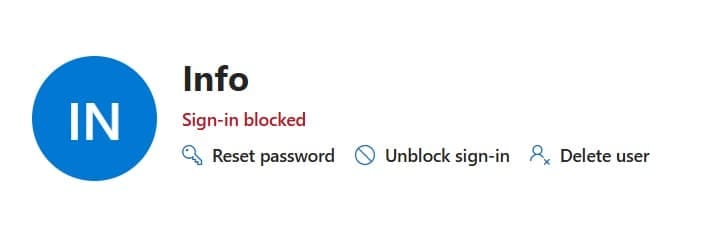
Sign in stays switched off
Nobody signs into the mailbox directly. Everyone reaches it through their own account and the permission they have been given.
If this is not something you handle in house, we can set it up correctly the first time, including the permissions that decide who can read it and who can send from it.
Using it day to day
On a computer
Once you are added, restart Outlook and the shared mailbox appears in your folder list automatically, on both Windows and Mac. To send as the shared address, use the From field when composing a new message.
On a phone or tablet
Add it in the Outlook app under Add account, then Add a shared mailbox, or reach it from a browser through Outlook on the web.
A few limits worth knowing
- Works best with up to 25 people. Beyond that, people tend to see connection issues, so a Microsoft 365 group is a better fit for bigger teams.
- Only people inside your business can use one. There is no way to add an outside address, such as a personal Gmail account.
- Anyone with access can delete messages, and there is no setting to stop that. Use a Microsoft 365 group instead if that matters to you.
- Sign in stays permanently switched off. It is not designed to be signed into directly, on a computer or anywhere else.
Common questions
Not usually. It is free to run as long as it stays under 50 GB, which covers most small businesses. You would only need a license for extra storage, long term archiving, or a legal hold.
If you mainly want a shared inbox for something like support or sales, a shared mailbox is the simpler choice. If your team also shares files and works together in Teams, a Microsoft 365 group is usually the better fit, since it brings all of that together in one place.
Yes. A shared mailbox works exactly like a normal email address to anyone sending to it. They will not know, or need to know, that more than one person is behind it.
Nothing happens to the mailbox itself. You simply remove that person's access, the same way you would remove any other permission, and the mailbox keeps working normally for everyone else.
Yes. Their existing mail and calendar stay exactly as they are, and the mailbox becomes something your team can monitor together instead of losing access to it entirely.
Not sure which setup is right for your team?
Shared mailboxes, Microsoft 365 groups and regular accounts all solve slightly different problems, and the right mix depends on how your team actually works. We can help you figure out what fits and set it up properly.
Book a session with MStack360Microsoft reference: Shared mailboxes documentation on learn.microsoft.com