
Teams client crash action plan
When Teams closes on its own, keeps hanging, or falls into a restart loop, work through the checks in order rather than jumping straight to a reinstall. This plan starts with the fixes that resolve the most cases, then moves toward log collection and escalation only if the crashes continue.
Confirm the scope first
A few quick checks tell you whether you are chasing a client problem or something wider, which saves you from reinstalling on the wrong machine.
- Compare desktop, web, and mobile. If web and mobile are stable, the problem is local to the desktop client.
- Confirm whether the issue is isolated to one area, such as Calendar, or affects the whole app.
- If Calendar is involved, validate Exchange Online and Outlook calendar behavior for the same user.
- Review the Teams client health dashboard for crash and update insights, where available to you as an admin.
Work through the fixes in order
Each step is quick to try. Test after each one before moving on, so you know which change actually fixed it.
Quit and restart Teams fully
On Windows, right select the Teams icon in the taskbar or system tray, choose Quit, then reopen Teams. Microsoft recommends a full restart to force a refresh for client issues. A normal window close is not enough, since Teams keeps running in the tray.
Sign out and sign back in
Select your profile picture, choose Sign out, reopen Teams, and sign back in. Microsoft lists this as a basic troubleshooting step, and it clears many session and token related faults.
Clear the Teams client cache
Clearing the cache resolves a wide range of client issues, and Teams should be restarted afterward. Use the method that matches the client and platform:
New Teams on Windows: go to Settings, Apps, Installed apps, Microsoft Teams, Advanced options, then Reset. You can also delete the cache path documented by Microsoft.
Classic Teams on Windows: quit Teams, open the cache folder, delete its contents, then restart Teams.
macOS: use the Microsoft documented cache removal commands for classic or new Teams, then restart Teams.
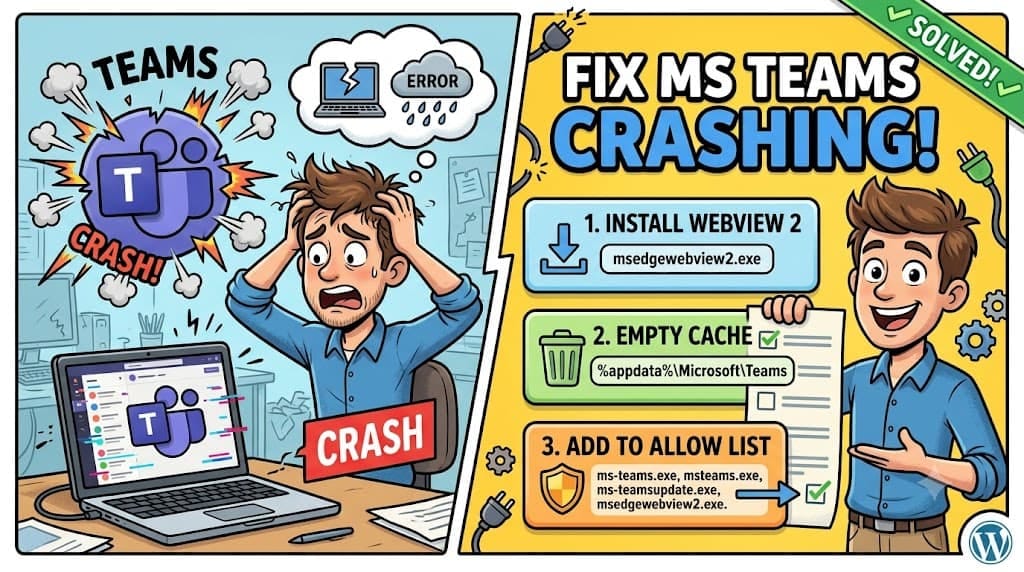
Update Teams and WebView2
Make sure both the Teams desktop app and the Microsoft Edge WebView2 Runtime are fully up to date. A partially installed update or a stale WebView2 build causes restart loops, and a "language changes detected, restart Teams" banner that will not clear is a related symptom some users see alongside this.
Reinstall Teams if cache and reset do not help
If clearing the cache or resetting the client does not stop the crashes, uninstall and reinstall Teams following Microsoft's guidance. This replaces any corrupted client files left behind.
Check audio and video drivers
Keep audio and video drivers updated for Teams stability, especially when crash insights point to the media stack. If the media stack still fails after driver updates and your security tools are confirmed to allow Teams, enable Windows Error Reporting to help identify the root cause and report it to Microsoft.
Rule out interfering software and runtimes
Some crashes never show up cleanly in crash dumps for either the desktop client or the WebView2 runtime. These are usually caused by security or endpoint software hooking into Teams, or by a missing system runtime.
Add the required exclusions
Exclude the Teams and WebView2 binaries from third party antivirus, DLP, and endpoint security tools. If adding these exclusions does not resolve the issue, move on to log collection and escalation.
Install missing runtimes
Confirm the machine has current Microsoft Edge WebView2, the .NET Framework, and DirectX installed. A missing or outdated runtime can trigger silent crashes that leave little in the logs.
Isolate the environment
Test on another PC, on a different network such as a phone hotspot, with a Windows clean boot, and with a fresh Windows user profile. Each test rules out one common external cause.
ms-teams.exe, msteams.exe, ms-teamsupdate.exe, and msedgewebview2.exe.
These endpoint and security products are known to interfere with Teams and produce crashes that are hard to trace. Check the running processes on an affected machine for any of them:
- BeyondTrust or Avecto (PGHook.dll)
- Aternity
- Zscaler
- CrowdStrike (Umppc*.dll)
- ControlUp
- McAfee, including McAfee Drive Encryption. If this is present, upgrading Drive Encryption to 7.4.0 is suggested.
Read the WebView2 exit code
When a crash is caused by a WebView2 process failure, the exit or error code points you toward the category of problem. A few of the most useful codes are below. The full reference lives in Microsoft's crash issue article.
| Code | Name | What it usually means |
|---|---|---|
1 | RESULT_CODE_KILLED | The process was forcibly terminated by the system or an external controller, which often points back to security software. |
2 | RESULT_CODE_HUNG | The process stopped responding and was terminated to prevent further issues. |
4 | RESULT_CODE_GPU_DEAD_ON_ARRIVAL | The GPU process failed at startup, usually from driver issues or hardware incompatibility. |
-536870904 | Out of Memory | The process ran out of available memory during execution. |
-1073740940 | STATUS_HEAP_CORRUPTION | The heap structure is corrupted, which can cause unpredictable behavior. |
-1073741819 | STATUS_ACCESS_VIOLATION | A memory access violation occurred, causing the crash. |
-1073739514 | STATUS_VIRUS_INFECTED | The process was terminated because antivirus flagged it, another sign to review your exclusions. |
Collect logs before escalating
If crashes continue after the documented fixes, gather diagnostics first so support has what it needs on the first pass.
- Collect the Teams client logs from the affected machine.
- Capture the Windows Event Viewer application crash details.
- Note the WebView2 and Teams related fault buckets and exit codes.
- Record the OS build and confirm Windows is fully updated.
Common questions
Teams keeps running in the system tray after you close its window. A full Quit from the tray icon is what forces the client to refresh, which is why step one matters before you try anything more involved.
Crashes with no visible dump for the desktop client or WebView2 are usually caused by external software hooking into Teams. Review running processes for the endpoint and security tools listed above, and confirm the required exclusions are in place.
No. Reinstalling is step five, not step one. Restarting, signing out and in, clearing the cache, and updating both Teams and WebView2 resolve most crashes without a reinstall, and they take far less time.
Still fighting a stubborn Teams crash across your fleet? We can help you trace the root cause and put a repeatable fix in place.
Book a session with MStack360