
Why Direct Routing numbers don't show in the Teams admin center dropdown
If you're trying to assign a Direct Routing phone number from the Teams admin center and the number type dropdown shows no Direct Routing option, you're not dealing with a misconfiguration. The admin center only lists number types that exist in Microsoft's managed number inventory. Direct Routing numbers live outside that inventory, so they will never appear in that dropdown. You have to assign them with PowerShell.
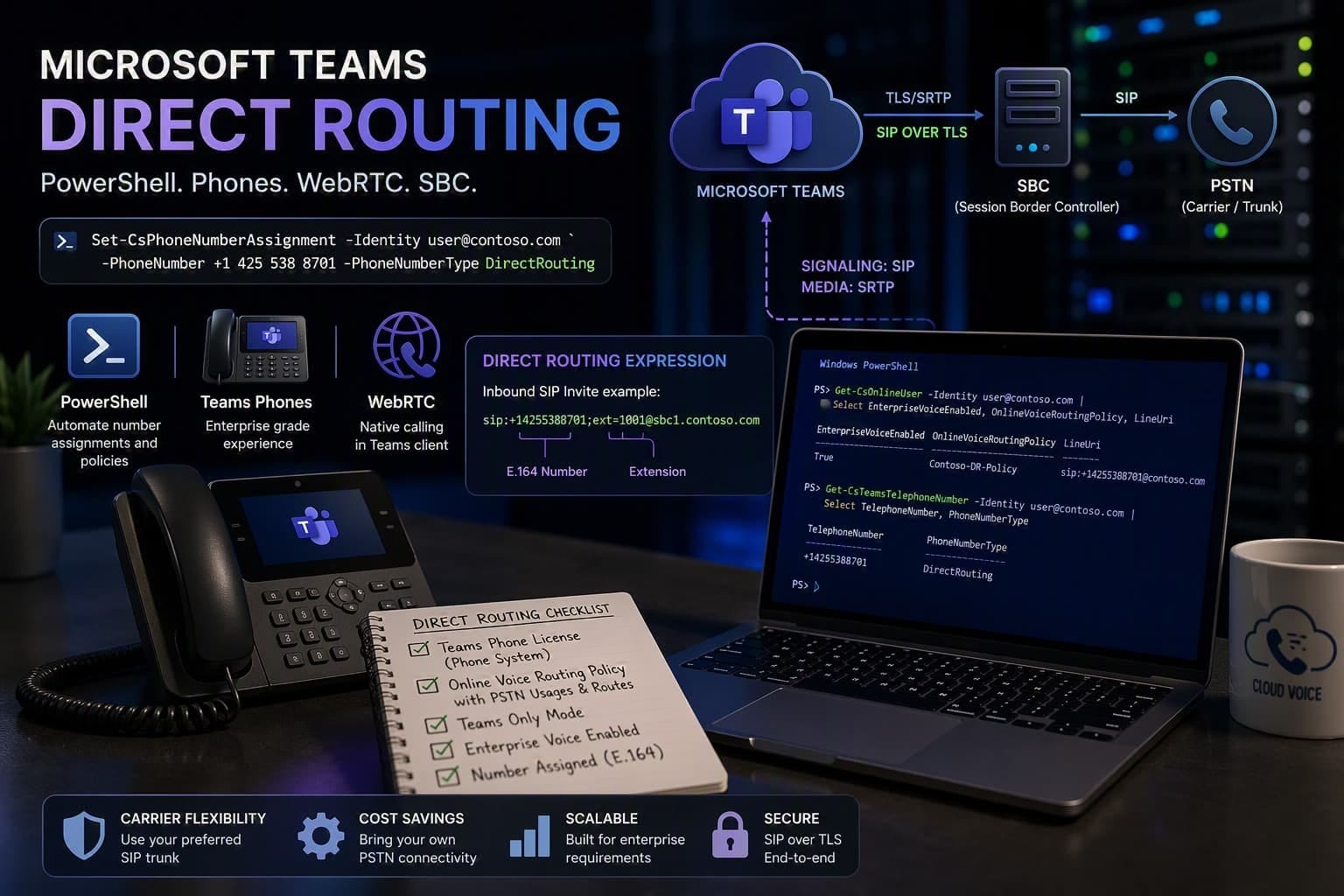
The correct command
+12025551234. Without the plus sign and country code, the command will throw an error.
Set-CsPhoneNumberAssignment -Identity user@domain.com -PhoneNumber +1XXXXXXXXXX -PhoneNumberType DirectRouting
After running it, wait a few minutes and refresh the admin center. The number will appear against the user once it propagates. The command also enables Enterprise Voice on the user automatically, so you do not need to run a separate command for that.
Set-CsPhoneNumberAssignment -Identity user1@domain.com -PhoneNumber "+14255388701;ext=1001" -PhoneNumberType DirectRouting
Set-CsPhoneNumberAssignment -Identity user2@domain.com -PhoneNumber "+14255388701;ext=1002" -PhoneNumberType DirectRouting
For extension-based lookups to work, the incoming SIP INVITE must carry the full number and extension, like this:
Invite: sip:+14255388701;ext=1001@sbc1.adatum.biz
Why you should not use Set-CsUser for this
Some community guides still suggest using Set-CsUser -LineUri combined with -PhoneSystemRoutingPolicyName "DirectRouting". This approach is deprecated. Set-CsUser for phone number assignment has been replaced by Set-CsPhoneNumberAssignment in current Teams PowerShell. Additionally, -PhoneSystemRoutingPolicyName is not a valid parameter on Set-CsUser in the current module and will fail with an error.
This is the correct cmdlet for assigning Direct Routing numbers in Teams today. It handles both the phone number and Enterprise Voice enablement in a single command. Microsoft's own documentation for enabling users for Direct Routing references this cmdlet as the current approach, and it is what the admin center uses under the hood when assigning numbers through the GUI.
Licensing for Direct Routing
You do not need a Calling Plan license for Direct Routing. The required licenses are different. Here is what you actually need versus what you can leave out.
-
Microsoft Teams Phone (formerly Phone System) This is the core license that enables the PBX features Teams Phone relies on, including Direct Routing. Without it, you cannot assign any phone number type to a user.
-
Online Voice Routing Policy with Direct Routing routes This is not a license but it is equally required. The user must have an Online Voice Routing Policy assigned that contains PSTN usages and routes pointing to your Direct Routing trunk. Without this, the number assigns successfully but calls will not route.
-
Calling Plan license is not required for Direct Routing A Calling Plan is only needed when you are using Microsoft-provided numbers. If you are using Direct Routing exclusively, you do not need it. Having one assigned will not block Direct Routing, but it may be why the admin center defaults to showing only the Calling Plan option in the dropdown.
-
Teams Only mode The user must be in Teams Only mode for incoming calls to land in the Teams client. Assign the
UpgradeToTeamsinstance of TeamsUpgradePolicy if your tenant has not already moved all users to Teams Only.
Verify these before assigning the number
The number will assign without these in place, but calls will not route correctly. Check them first.
Check whether Enterprise Voice is enabled on the user
Get-CsOnlineUser -Identity user@domain.com | Select EnterpriseVoiceEnabled, OnlineVoiceRoutingPolicy, LineUri
EnterpriseVoiceEnabled should be True. If it is not, and you are managing the number online, running Set-CsPhoneNumberAssignment with the phone number assignment will set it automatically. If you only need to enable Enterprise Voice without assigning a number yet, run:
Set-CsPhoneNumberAssignment -Identity user@domain.com -EnterpriseVoiceEnabled $true
UseOnPremDialPlan $True and legacy Skype for Business phones in use, setting it to False can cause dial plan normalisation issues. Leave it at True or let Set-CsPhoneNumberAssignment manage it.
The user's OnlineVoiceRoutingPolicy must also have PSTN usages and routes that match your trunk configuration. If it is blank or pointing to the wrong policy, assign the correct one:
Grant-CsOnlineVoiceRoutingPolicy -Identity user@domain.com -PolicyName "YourPolicyName"
Optionally: upload your Direct Routing numbers to Microsoft's inventory
Uploading your Direct Routing numbers to Microsoft's telephone number management inventory is optional. If you skip this step, you can still assign numbers to users. Assigning a number automatically adds it to the inventory if it is not already there. Uploading manually first makes the numbers visible in the Teams admin center under Voice then Phone numbers before you assign them, which can be useful for larger rollouts where you want to plan assignments in advance.
To upload numbers via PowerShell:
New-CsOnlineDirectRoutingTelephoneNumberUploadOrder -TelephoneNumbers @("+1XXXXXXXXXX", "+1YYYYYYYYYY")
To upload via the admin center, go to Voice then Phone numbers, select Add, choose From Direct Routing, and follow the order wizard. You can add numbers one by one, as a range, or by uploading a CSV. The CSV format requires a single column with the header TelephoneNumber and one number per row in E.164 format.
Microsoft reference: learn.microsoft.com - Enable users for Direct Routing
Great content! Keep up the good work!
pleasure is ours!