
Teams sign-in blank or not working? Start here.
The sign-in window opens white or nothing loads at all. Before you spend an hour guessing, run the two-second browser test below. It tells you exactly which half of the problem you are dealing with.
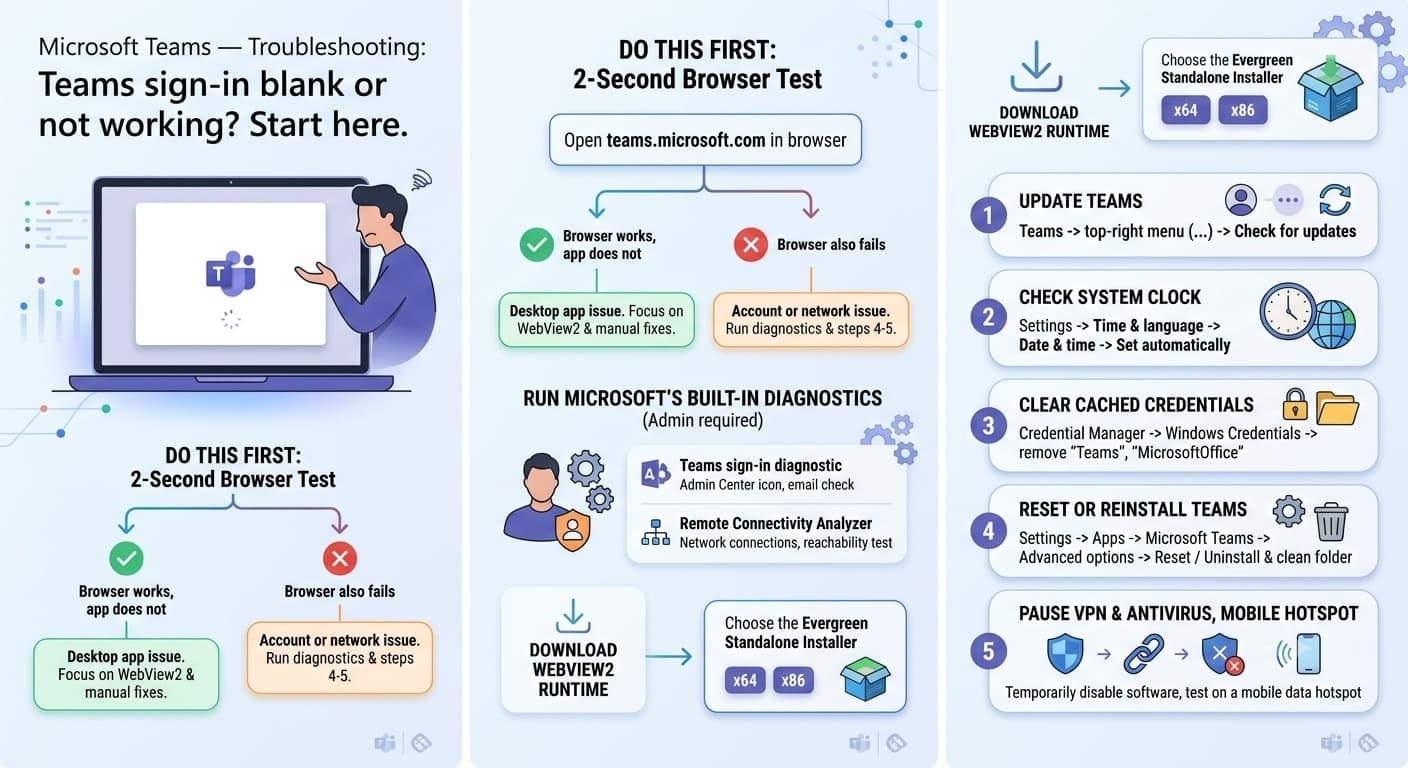
Open teams.microsoft.com in your browser and try signing in.
Run Microsoft's built-in diagnostics first (admin required)
If you have a Microsoft 365 admin account, these two tools check the affected account automatically and identify the root cause in seconds. Run them before attempting any manual steps.
Teams sign-in diagnostic
Runs in the Microsoft 365 admin center. Enter the affected user's email address and it checks their account configuration for known sign-in blockers.
Remote Connectivity Analyzer
Tests whether the user's account can actually reach Microsoft's authentication endpoints. Catches network and connectivity blocks that the admin center test does not cover.
Install the WebView2 Runtime
Teams uses a component called WebView2 to render the sign-in window. If it is missing or outdated on your PC, the window loads blank. Installing it fixes the problem for most people.
Download WebView2 RuntimeChoose the Evergreen Standalone Installer → install → restart your PC → try Teams again.
Manual fixes in order
If WebView2 did not fix it, or the diagnostics did not find an issue, work through these steps in sequence.
Update the Teams desktop app
Teams → top-right menu (three dots) → Check for updates
Check your system clock
Settings → Time & language → Date & time → turn on "Set time automatically" and "Set time zone automatically"
Clear cached credentials
Credential Manager → Windows Credentials → remove any entries containing "Teams" or "MicrosoftOffice"
Reset or fully reinstall the Teams app
Settings → Apps → Microsoft Teams → Advanced options → Reset
For a full reinstall: uninstall Teams, then delete the
%appdata%\Microsoft\Teams folder, then reinstall from teams.microsoft.com/downloads. Right-click the installer and choose Run as administrator.
Pause your VPN and antivirus, then test on a mobile hotspot
Check your error code
Teams displays an error code on the sign-in screen when something specific is wrong. If you can see a code, find it below. It tells you exactly what to do next.
0xCAA82EE2
No internet or network connectivity issue
Conditional Access is blocking the sign-in
0xCAA70007
Office 2016 connection issue (also affects other Office apps)
At this point it is usually a Conditional Access policy, a licensing gap, or an Entra ID configuration that needs an admin to resolve.
These are not things you can fix from your own machine. We can check your tenant, identify the exact cause, and fix it on the first call.
Microsoft reference: learn.microsoft.com — Resolve sign-in errors in Teams