Microsoft 365 Business Setup Step by Step Guide

Table of Contents

This guide walks you through setting up Microsoft 365 for business the right way, step by step, in the order that actually makes sense.

Microsoft 365 Business Setup Step by Step Guide

Here’s the thing.

Setting up Microsoft 365 for your business is not complicated. But doing it cleanly and correctly from day one is what makes the difference later.

So let’s walk through the full Microsoft 365 Business setup process, without overthinking it.

Why Microsoft 365 Is Worth Setting Up Properly

What I love most about Microsoft 365 is that it grows with you.

You usually start with professional email and Office apps. Then you realize you also get Teams, security controls, file sharing, and user management, all in one place.

Professional Email

Your business identity starts with a clean, reliable email setup.

Work Anywhere

Access files, emails, and apps securely from any device.

Built-in Security

Microsoft 365 includes security features many businesses overlook.

Scales With You

Add users, services, and controls as your business grows.

Important warning

Never buy Microsoft 365 through GoDaddy. It limits admin control, complicates security, and makes future migration painful. Always purchase Microsoft 365 directly from Microsoft or a proper Microsoft Partner.

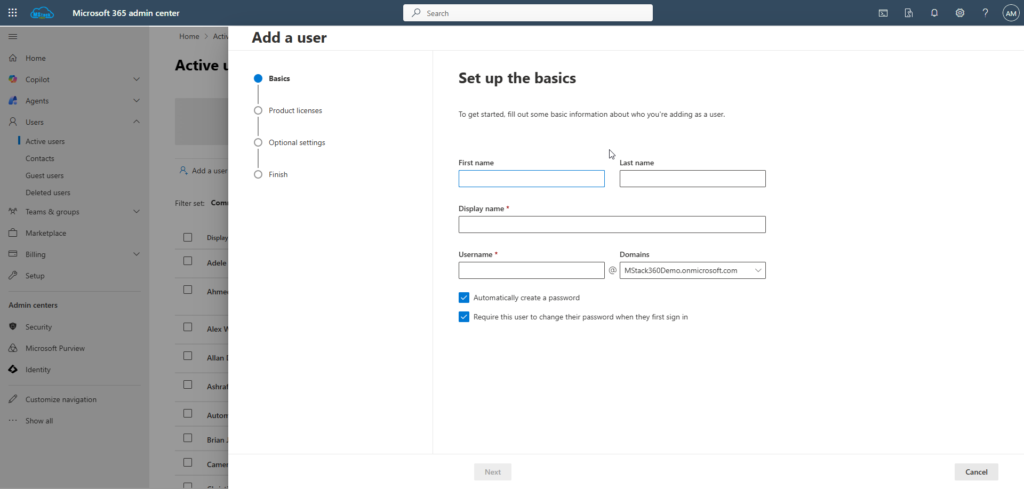
Microsoft Admin Center View While adding a new user

Choosing the Right Microsoft 365 Business Plan

When you first look at Microsoft 365 business plans, you’ll usually see three main options: Business Basic, Business Standard, and Business Premium.

For most small businesses, Microsoft 365 Business Standard is the best starting point. It gives you everything most teams need without adding unnecessary complexity.

Business Basic

  • Web and mobile Office apps
  • Business email
  • Microsoft Teams meetings
Recommended

Business Standard

  • Desktop Office apps
  • Professional business email
  • Microsoft Teams with meeting recordings

Business Premium

  • Everything in Standard
  • Advanced security features
  • Device and endpoint management

At the time of setup, Business Standard costs around $12.50 per user per month and usually includes a one-month free trial.

Licensing can get confusing as your business grows. I’ve written a separate guide that explains Microsoft 365 license differences in plain language:
Microsoft 365 Licenses Explained – Part 1
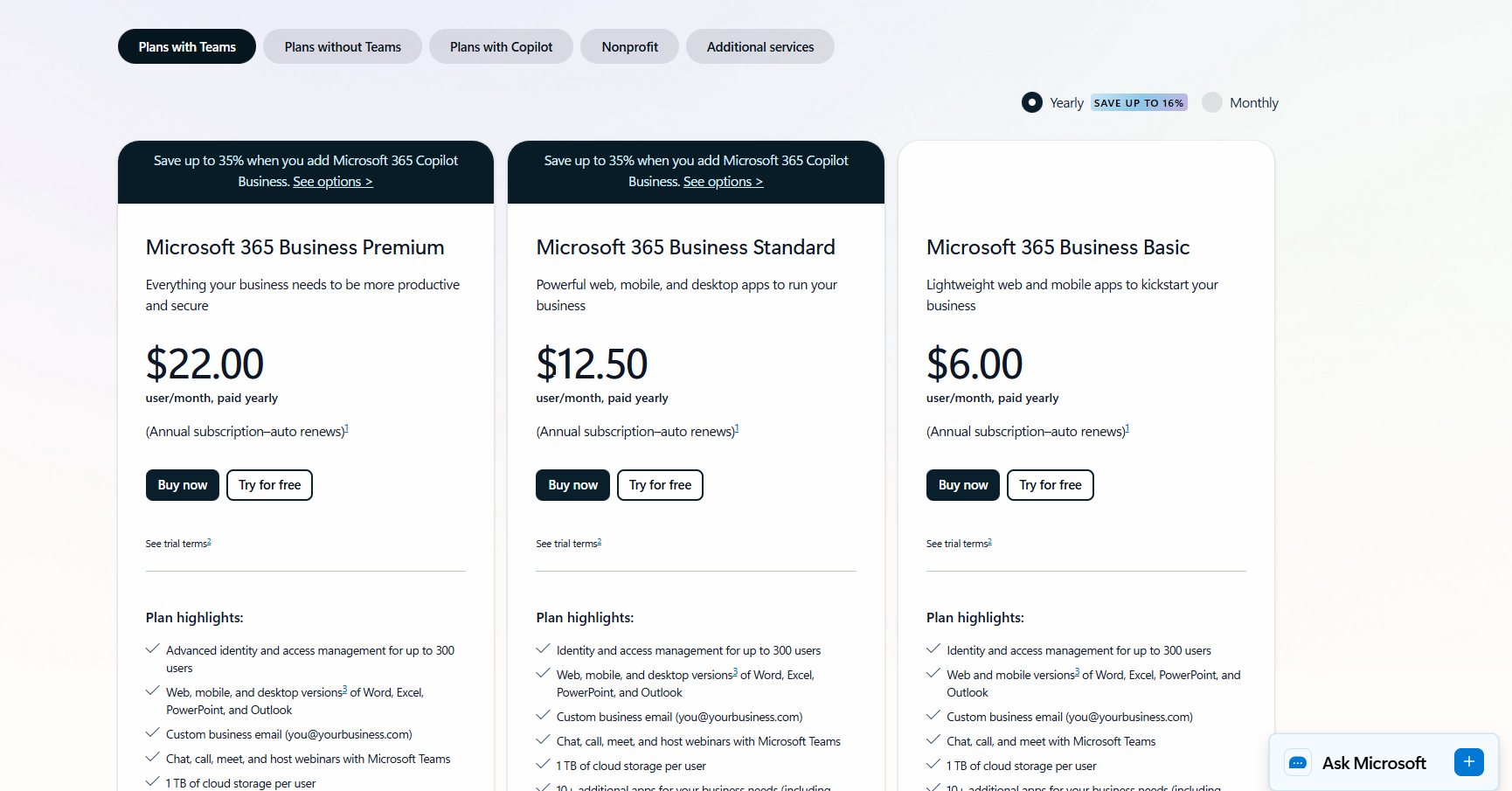
Microsoft 365 Business plans comparison screenshot

Creating Your Microsoft 365 Admin Account

This is where your Microsoft 365 journey really begins. The goal here is simple: create a clean admin account that you fully control from day one.

1. Navigate to the Microsoft 365 Business Standard page

  • Go to the Microsoft 365 Business Standard product page
  • Click the “Buy now” button

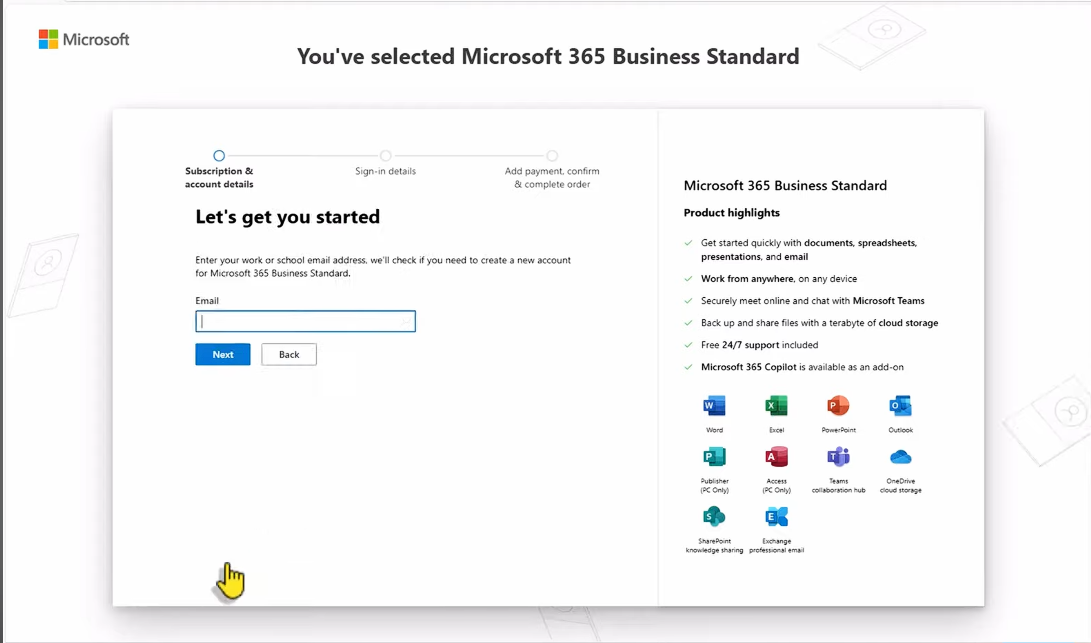
2. Enter your personal email address

  • Use your personal email (Gmail, Yahoo, etc.)
  • This email is used for Microsoft communication and account recovery
  • Click Next
Enter personal email during Microsoft 365 signup

3. Create your account

  • Enter your name, phone number, and required details
  • You’ll receive a verification code by email
  • Enter the code to confirm your account

4. Set up your business information

  • Enter your business name
  • Select your country or region
  • Microsoft assigns a temporary domain like yourcompany.onmicrosoft.com
  • Don’t worry, you’ll add your real domain later

5. Create your admin account

  • Choose a username (example: admin@yourcompany.onmicrosoft.com)
  • Create a strong password
  • Store these credentials securely

6. Select your plan and payment

  • Choose how many licenses you need
  • Enter your payment details
  • Complete the purchase

7. Access the Microsoft 365 Admin Center

  • After purchase, you’ll be redirected to the Admin Center
  • This is where you manage users, security, licenses, and settings
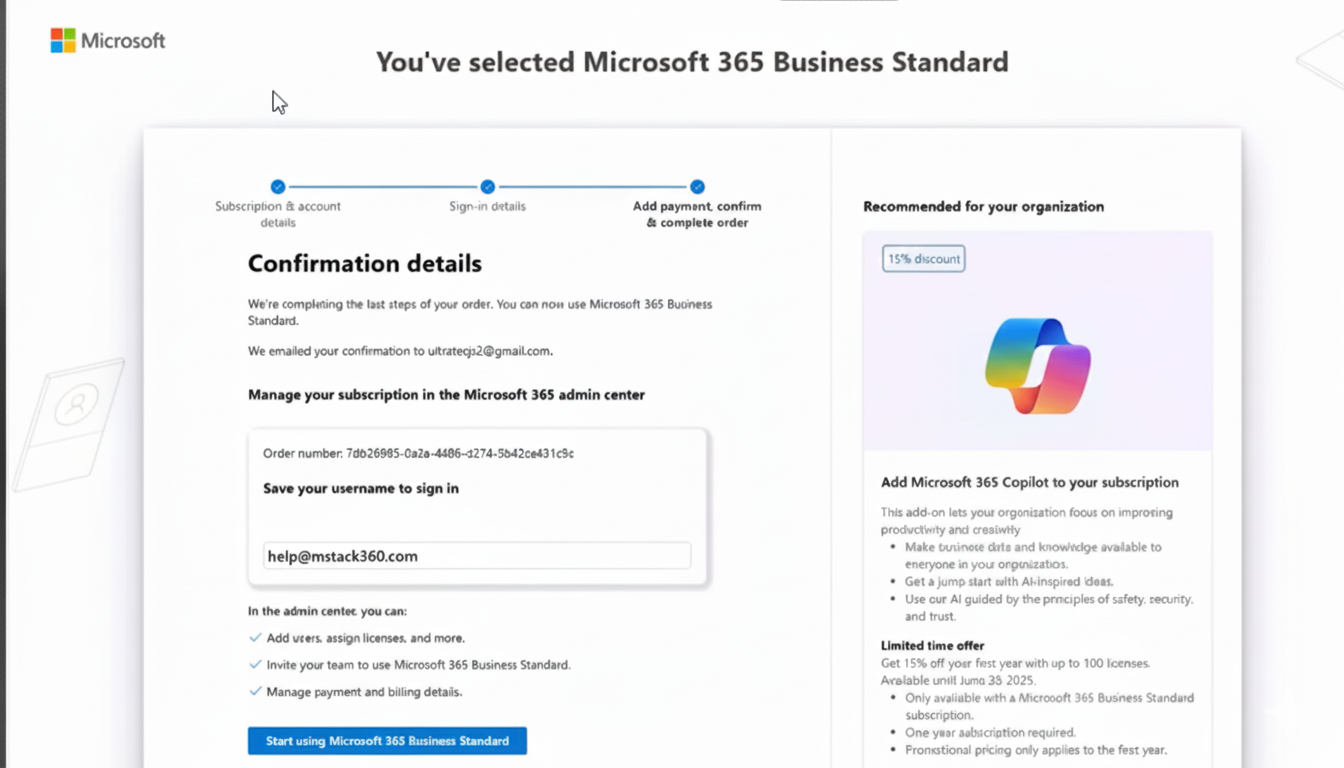
Microsoft 365 Admin Center access

Need ongoing Microsoft 365 help?

At MStack360, we support businesses on a retainer basis. We help you secure Microsoft 365, automate daily work, and keep everything running smoothly, without you needing to figure it out alone.

Book a Microsoft 365 Strategy Call


Securing Your Account with MFA

Before doing anything else, enable Multi Factor Authentication.

Honestly, I’ve been there. Skipping security “for later.” That’s usually how problems start.

MFA takes a minute and protects your entire tenant.

Next Steps

Once your Microsoft 365 tenant is secure, these are the logical next steps. You don’t need to do everything at once, just follow the order.

Buy & Connect Your Custom Domain

Use your real business domain instead of the temporary onmicrosoft.com address.

Install Microsoft 365 Apps

Install Outlook, Word, Excel, and Teams on all required devices.

Create Business Email Accounts

Set up professional email addresses for each user.

Test Email Flow

Send and receive emails internally and externally to confirm everything works.

Use Shared Mailboxes

Create shared inboxes like info@ or support@ without extra licenses.

Configure Microsoft Groups

Control access to files, emails, and permissions more efficiently.

Set Up Microsoft Teams

Organize chats, meetings, and collaboration by department or project.

Set Up SharePoint

Create a central, secure place for company documents and collaboration.

Quiet note: If you’d rather not handle all of this alone, this is exactly where we at MStack360 helps businesses - ongoing Microsoft 365 setup, security, automation, and support on a retainer basis.

Final Thoughts

Nobody likes emailing a business that’s still running on Gmail.

A proper Microsoft 365 setup gives you credibility, security, and room to grow. And as you’ve seen, it’s not hard when you follow the right steps in the right order.

Community Question

What part of setting up Microsoft 365 gave you the most trouble? Domains, licenses, or email migration?

If this guide helped, share it with someone who’s still setting up their business email.

And if you want help setting this up, or cleaning up an existing tenant... you can book a free 15-minute call with me. No pressure. We’ll just take a look and see what makes sense.

click the link

Leave a Comment

Your email address will not be published. Required fields are marked *